How to Record Vocals in Logic Pro X: Beginner Step-by-Step
Table of Contents
Why Record Vocals in Logic Pro X?
How to Set Up Your Microphone in Logic Pro X
How to Fix Latency When Recording Vocals
How to Record Vocals in Logic Pro X
How to Record Multiple Takes and Comp Vocals in Logic Pro X
Is Logic Pro Better Than Audacity for Recording Vocals?

Key Takeaways
Always record vocals in mono, not stereo.
Set your input device correctly before you start.
If you are using a condenser mic, make sure phantom power (+48V) is turned on.
Keep your vocal level around -18dB to -12dB to avoid clipping.
Use a low buffer size when recording to reduce latency.
Turn on Low Latency Mode if your project starts lagging.
Use cycle recording and take folders to record multiple takes and comp the best performance.
Logic Pro X is a much better long-term choice than Audacity for vocal recording and music production.
Why Record Vocals in Logic Pro X?
If you are a singer, songwriter, or beginner producer, Logic Pro X is one of the best DAWs you can use for recording vocals at home.
Here’s why:
It gives you a professional vocal recording workflow without being overly complicated once you learn the basics.
You get built-in tools for comping, editing, EQ, compression, reverb, and pitch correction.
It is especially helpful for artists who want to record ideas quickly and shape them into finished songs later.
You can keep everything in one place: songwriting, vocal recording, production, editing, and mixing.
In other words, Logic Pro X is not just good for recording vocals. It is good for growing with you as your skills improve.
From Songwriter to DAW Panic
Back when I was getting my degree in songwriting, we barely touched the production side of music. Everything was built around that dreamy singer-songwriter image: a messy notebook, an acoustic guitar, and a song arriving like magic.
Then one day, we were suddenly expected to open a DAW and somehow translate all of that feeling into software.
I remember staring at Logic Pro for the first time, thinking: what even is this?
If you have ever opened Logic and felt intimidated by the dark interface, endless buttons, and technical language, you are not alone. And when you are already nervous about recording your voice, the last thing you need is tech stress on top of performance anxiety.
Because recording vocals can feel vulnerable enough as it is. You hear every breath, every mouth sound, every flat note, every little imperfection. That part is intense. The workflow should not make it worse.
So let’s make it simple. Here’s exactly how to record vocals in Logic Pro X, step by step.
How to Set Up Your Microphone in Logic Pro X
Before you hit record, make sure your microphone, audio interface, and Logic are all properly connected.
1. Choose Your Audio Input Device
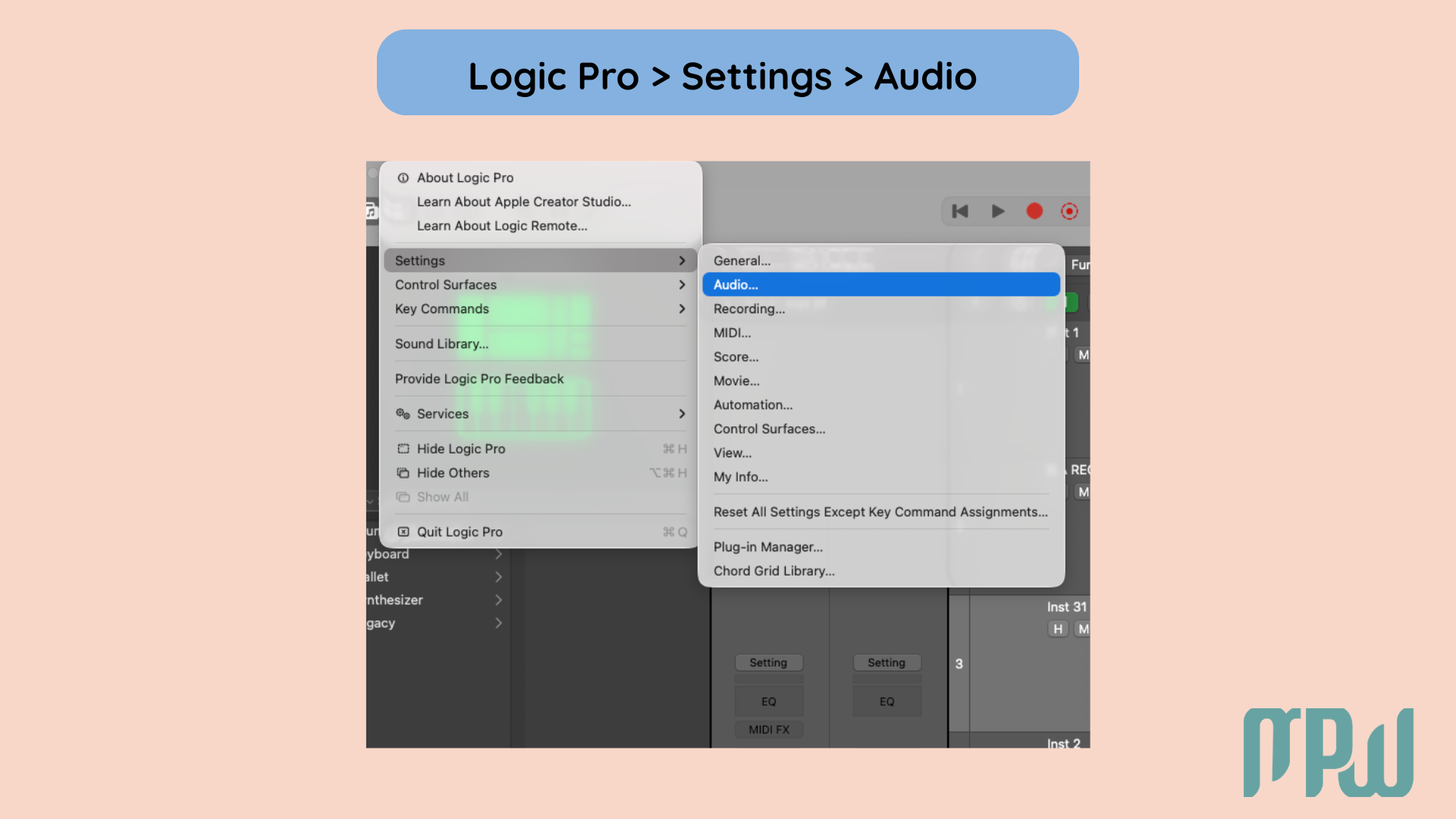
Go to Logic Pro > Settings > Audio.
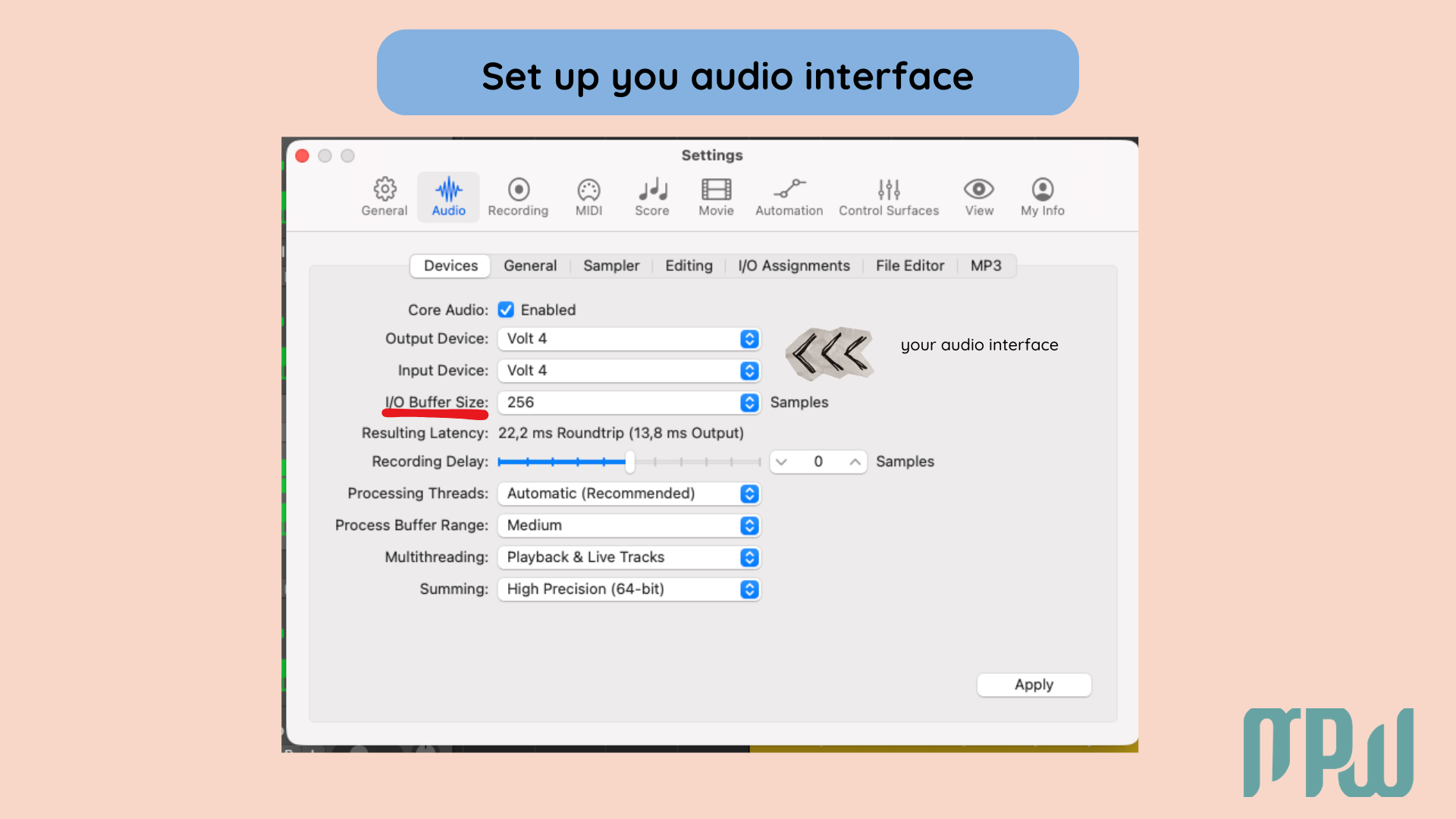
Under the Devices tab, set your Input Device to your audio interface. If your interface is not selected here, Logic will not receive your microphone signal correctly.
For Apple’s official Logic documentation on audio devices, you can link here: https://support.apple.com/en-mz/guide/logicpro/lgcpebe7fb26/mac (Apple Support)
2. Turn On Phantom Power if Needed
If you are using a condenser microphone, you will usually need to turn on the +48V phantom power button on your audio interface.
Phantom power supplies the voltage condenser mics need to operate properly.
Important:
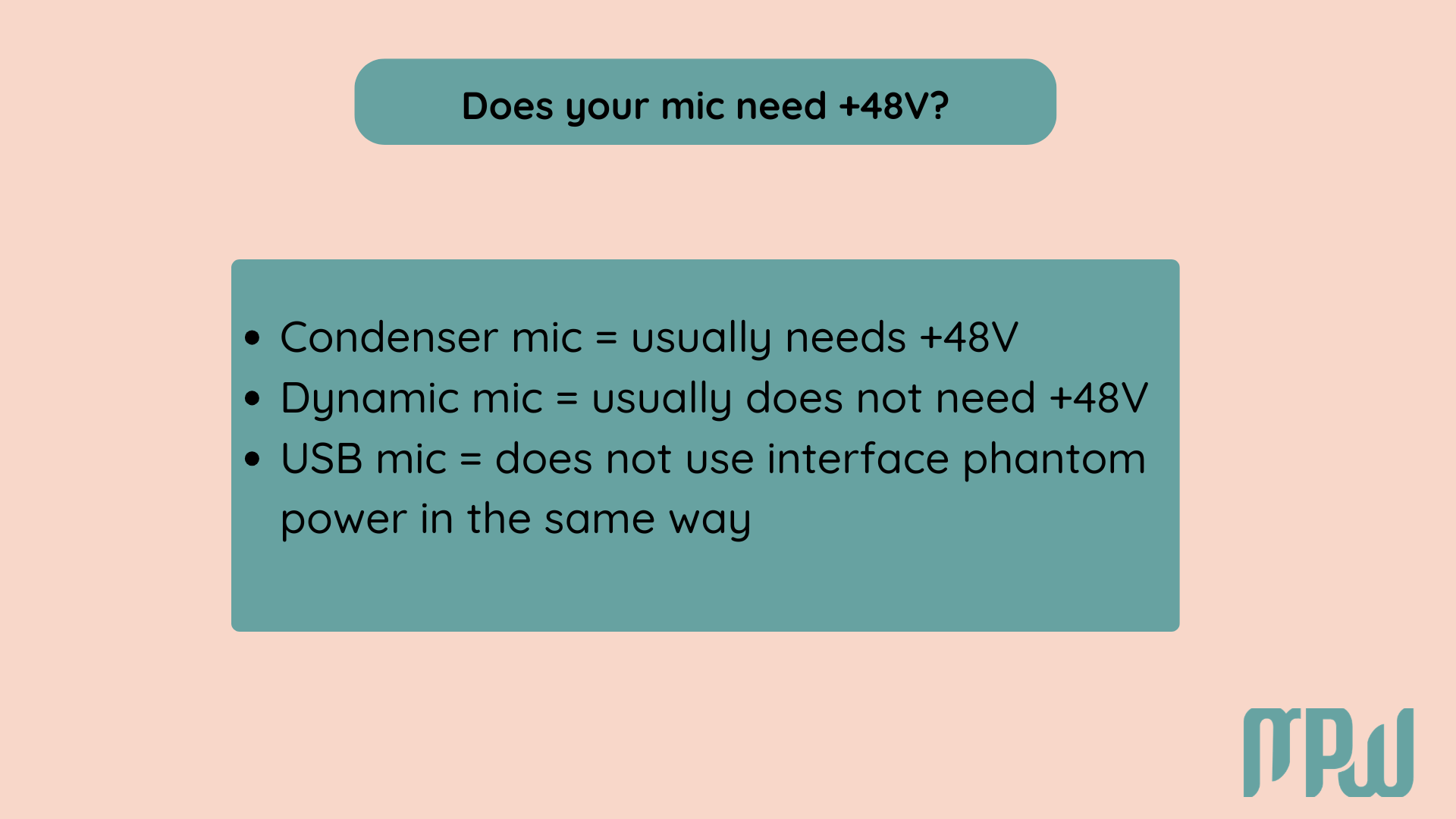
Condenser mic = usually needs +48V
Dynamic mic = usually does not need +48V
USB mic = does not use interface phantom power in the same way
Always double-check your microphone type before switching on phantom power.
If you are not sure what kind of mic you are using, read our guide on dynamic vs condenser microphones:
https://musicproductionforwomen.com/post/dynamic-microphone-vs-condenser
3. Set Your Gain Properly
This step matters more than most beginners realize.
Sing the loudest part of your song and watch your input meter. Aim for peaks around -18dB to -12dB. You want a healthy signal, but not one that clips.
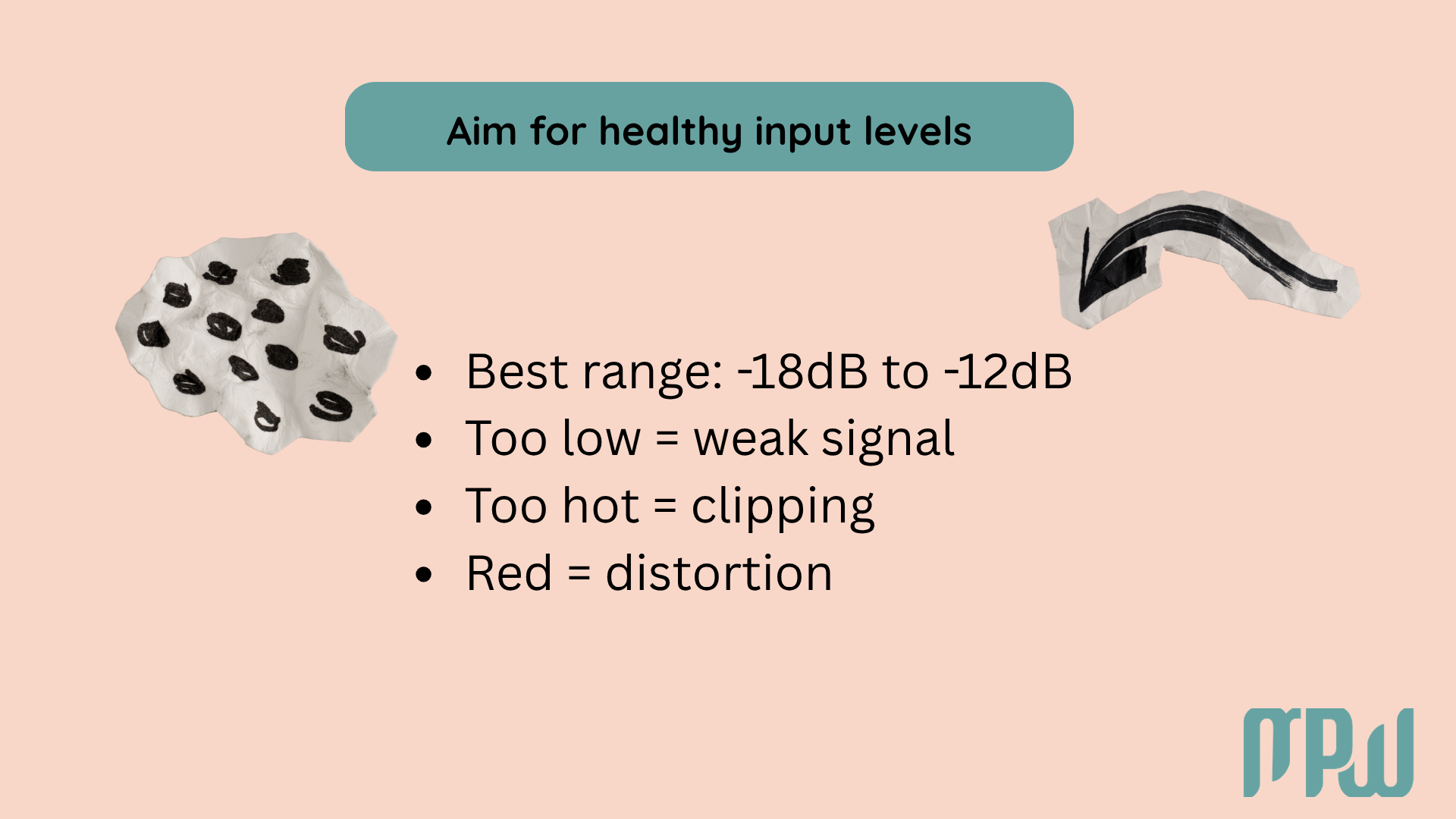
If the meter goes red, your input is too hot. That distortion cannot be fixed later, so it is much better to record a little lower than too loud.
4. Check Your Recording Environment
Even with the perfect mic setup, your room still matters.
Before recording, check for:
fan noise
traffic noise
computer hum
harsh room reflections
headphones bleeding into the mic
A perfect vocal chain will not help much if your recording space is noisy.
How to Fix Latency When Recording Vocals
One of the most frustrating parts of vocal recording is latency.
That is when you sing something and hear it back a split second later in your headphones. It throws off your timing and makes recording feel much harder than it needs to be.
Lower Your Buffer Size
Go to Logic Pro > Settings > Audio.
Look for I/O Buffer Size. When recording vocals, use a low buffer size, such as 64 or 128.
This helps Logic process your incoming audio faster, reducing the delay between what you sing and what you hear.
Use Low Latency Mode
If your session already has lots of plugins, synths, or effects running, your computer may struggle at low buffer settings.
In that case, turn on Low Latency Mode. This temporarily bypasses heavy plugins that are causing extra delay, making it easier to record in real time.
It is one of the most useful features in Logic for vocal tracking, especially in larger projects.
Headphone Tip
If you still feel a delay, check whether you are monitoring through Logic, your audio interface, or both.
Hearing both signals at once can create a strange doubled sound.
How to Record Vocals in Logic Pro X
Now that your setup is ready, here’s the fun part: let’s record.
1. Create a New Audio Track
Create a new audio track in Logic using Option + Cmd + A.
When the input format appears, choose Mono, not Stereo. A vocal recorded with one microphone should almost always go onto a mono track.
2. Select the Correct Input
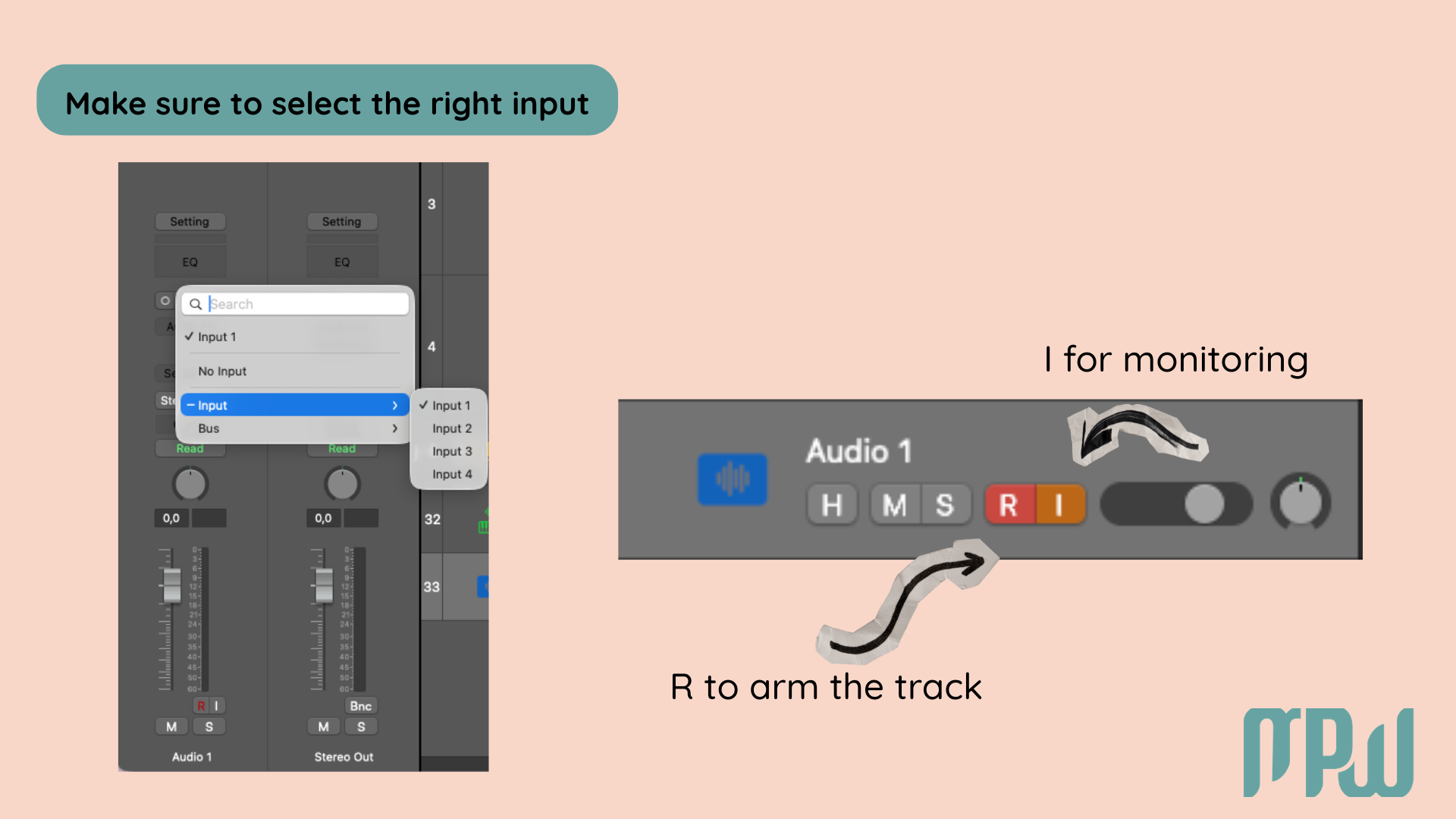
Choose the input on your audio interface that your microphone is plugged into, such as Input 1 or Input 2.
If you do not choose the right input, Logic will arm the track but record silence.
3. Arm the Track for Recording
Click the R button on the track header. This arms the track and tells Logic you want to record onto it.
4. Turn On Input Monitoring
Click the I button on the same track.
This lets you hear your microphone in Logic while you prepare to record.
If you want the experience to feel nicer, you can add a little reverb in your headphone mix while tracking. Just make sure you understand whether you are only monitoring that effect or printing it into the recording chain.
For most beginners, the goal is to record a clean, dry vocal and add effects later.
5. Turn On the Count-In
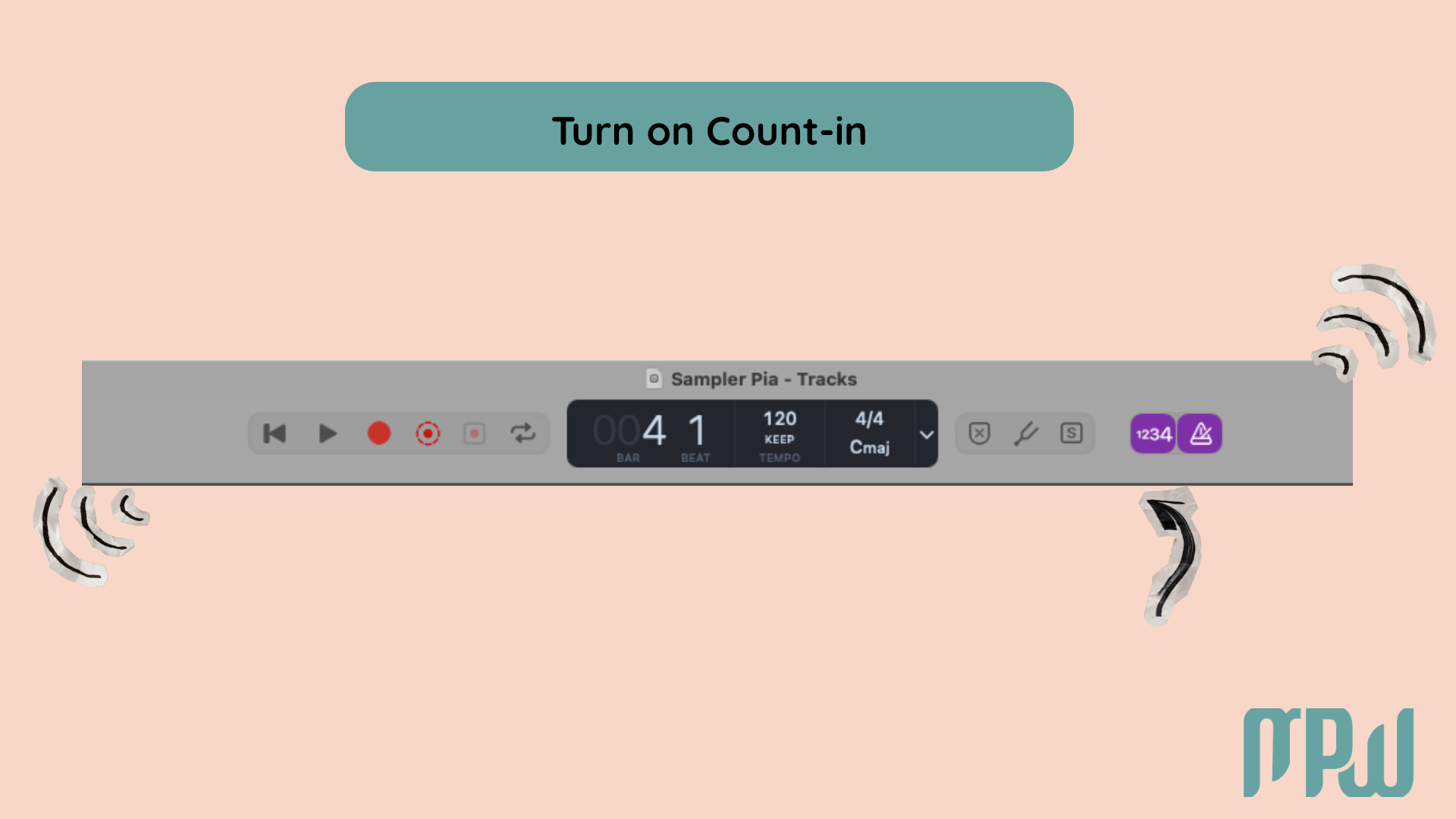
If jumping straight into the take feels stressful, use the count-in feature.
Turn on the 1234 button near the metronome so Logic gives you a full bar of clicks before recording begins.
This helps you breathe, prepare, and come in on time.
6. Hit Record
Now hit record and start singing.
Do not stop every time something feels imperfect. Sometimes your best take is the one where you stay in the emotion rather than interrupting yourself every few seconds.
How to Record Multiple Takes and Comp Vocals in Logic Pro X
Nobody gets the perfect vocal in one take.
That is completely normal.
One of the best features of Logic Pro X is how easy it is to record multiple takes and combine the best parts into one strong final performance.
Use Cycle Recording
Turn on the Cycle feature and drag the yellow bar over the section you want to repeat, like a chorus or verse.
Then hit record and perform the section several times in a row as it loops.
Logic will automatically place each pass into a take folder.
Comp Your Best Performance
Open the take folder and listen back through each take.
Then choose the best phrase, word, or line from each pass by swiping across it.
Logic creates a comp from the selected sections, letting you build one polished performance without needing a perfect take from start to finish.
This is how many professional vocal tracks are built.
Is Logic Pro Better Than Audacity for Recording Vocals?
For vocal recording and music production, yes.
Audacity is useful for simple audio editing, trimming voice notes, or rough recordings. But it is not designed to give you a flexible music production workflow.
Logic gives you:
easy comping
built-in plugins
pitch editing with Flex Pitch
full production and mixing tools
If all you need is a very basic audio recorder, Audacity can do that.
If you want to record vocals seriously, produce songs, and improve over time, Logic Pro is the better investment.
Want to Start Producing But Not Sure Where to Start?
Final Thoughts
The technical side of recording vocals can feel intimidating in the beginning, especially when you are already feeling exposed as a singer.
But the truth is, once your setup is working, the process becomes much simpler than it seems.
You learn your input.
You learn your monitoring.
You learn where the red button is.
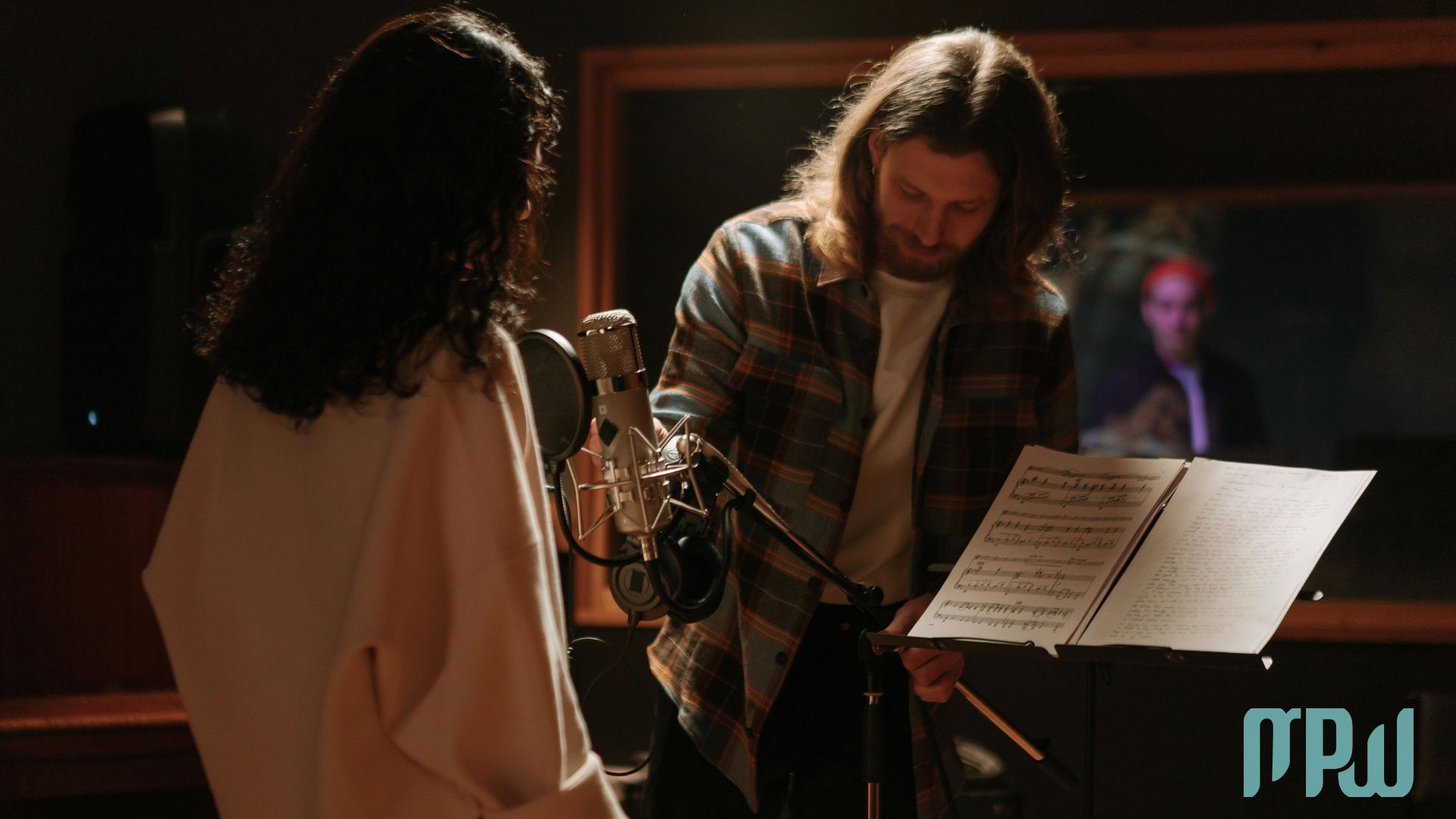
And after that, you get to focus on what actually matters: the performance.
Your DAW is not there to intimidate you. It is there to capture the feeling.
So once everything is ready, try not to obsess over every button on the screen. Dim the lights. Put your headphones on. Take a breath. Let yourself sing the song instead of over-managing the process.
You do not need a perfect take. You need a real one.
FAQ: Recording Vocals in Logic Pro X
How do I record vocals in Logic Pro X?
Create a new mono audio track, choose the correct input from your interface, arm the track with the R button, enable input monitoring with the I button, and hit record.
Is Logic Pro X good for recording vocals?
Absolutely. It is an industry standard that includes powerful built-in tools for tracking, comping, and mixing vocals.
Should I record vocals in mono or stereo in Logic Pro?
Always mono. You only use one microphone for a lead vocal, so you only need a mono track.
Why is my microphone not working in Logic Pro X?
Check your basics:
your interface is selected in Audio Settings
the track is armed
+48V phantom power is on if you are using a condenser mic
Logic has Microphone Permission enabled in your Mac’s privacy settings
If Logic still is not receiving your mic signal, check Apple’s guide on microphone permissions for Mac:
https://support.apple.com/guide/mac-help/control-access-to-the-microphone-on-mac-mchla1b1e1fe/mac
How do I fix latency in Logic Pro X when recording vocals?
Lower your buffer size to 64 or 128. If your session is large and starts glitching, click the Low Latency Mode button in the control bar.
Why can’t I hear myself in headphones while recording?
Make sure:
you have clicked the I (Input Monitoring) button
your headphone volume is turned up on
your audio interface you are not hearing both direct monitoring and software monitoring at the same time
Do I need an audio interface to record vocals in Logic Pro X?
If you are using a standard XLR microphone, yes.
If you have a USB microphone, you can plug it straight into your Mac, though interfaces generally offer better sound quality.
Do I need phantom power to record vocals?
Only if you are using a condenser microphone. Standard dynamic mics do not need +48V.
What level should I record vocals at in Logic Pro X?
Aim for the green zone: peaks between -18dB and -12dB. Never let the meter hit the red, or your audio will permanently distort.
Can I record with reverb in Logic Pro X?
Yes. You can monitor your voice with reverb to help your performance feel better, but for most beginner workflows, it is best to record a clean, dry vocal and add the actual reverb later.
How do I record multiple takes in Logic Pro X?
Turn on Cycle Mode to loop a section of your song. Logic will automatically save every pass into a take folder so you can combine the best parts later.
Does Logic Pro X have pitch correction?
Yes. Logic includes Flex Pitch, which lets you manually tune your vocals right inside the software.
Is Logic Pro better than Audacity?
Yes. Audacity is a basic audio editor, while Logic Pro is a full music production DAW with non-destructive editing, built-in plugins, and mixing tools.
Can beginners use Logic Pro X for vocals?
Yes. The screen may look intimidating at first, but the actual workflow for recording a vocal is much simpler once everything is plugged in.
And after that, you get to focus on what actually matters: the performance.
Your DAW is not there to intimidate you. It is there to capture the feeling.
So once everything is ready, try not to obsess over every button on the screen. Dim the lights. Put your headphones on. Take a breath. Let yourself sing the song instead of over-managing the process.
You do not need a perfect take. You need a real one.