LUFS, True Peak, and Export Settings in Logic Pro X: A Beginner Guide for Streaming
Table of Contents
What Are LUFS in Music Production?
What Is True Peak and Why Does It Matter?
Why Streaming Loudness Matters
How to Measure LUFS in Logic Pro X
What True Peak Setting Should You Use?
Export Settings for a Streaming-Ready Master
Common Loudness and Export Mistakes to Avoid
Key Takeaways
LUFS measures how loud your song feels, not just how high the waveform peaks. In Logic Pro X, the Loudness Meter helps you measure Integrated LUFS, which is usually the most useful reading for a finished song.
True Peak helps prevent distortion after your file is encoded for streaming. A safe target is usually -1 dBTP.
Streaming platforms normalize loudness, so making your song aggressively louder does not always help.
Strong default export settings in Logic Pro X for a finished master are WAV or AIFF, 24-bit, with Normalize turned off.
You’ve finished your master. You survived the limiter. You made peace with the EQ. Maybe you even passed the car test with only one minor emotional event.
And then, just as you are ready to bounce your track, Logic gives you a fresh set of questions:
What LUFS should I aim for?
What is True Peak?
What export settings should I use in Logic Pro X?
Should I normalize on export?
This is one of those parts of music production that sounds far more intimidating than it really is. Mostly because it shows up right at the end, when your ears are tired, your brain is fried, and all you want is to export the song and go be a person again.
The good news is that once you understand what LUFS, True Peak, and export settings in Logic Pro X actually mean, the whole process becomes much more manageable.
In this guide, we’ll break it all down so you can export a streaming-ready master that sounds clean, feels musical, and holds up well once it leaves your laptop.
What Are LUFS in Music Production?
Let’s start with the big one.
LUFS stands for Loudness Units relative to Full Scale. It is a way of measuring perceived loudness, which means how loud your track actually feels to human ears over time.
That is different from just looking at how high the waveform peaks.
A song can hit high peaks without feeling especially loud overall, while another song can feel much louder even if the peaks look similar. That is why LUFS matters when you are mastering for streaming.
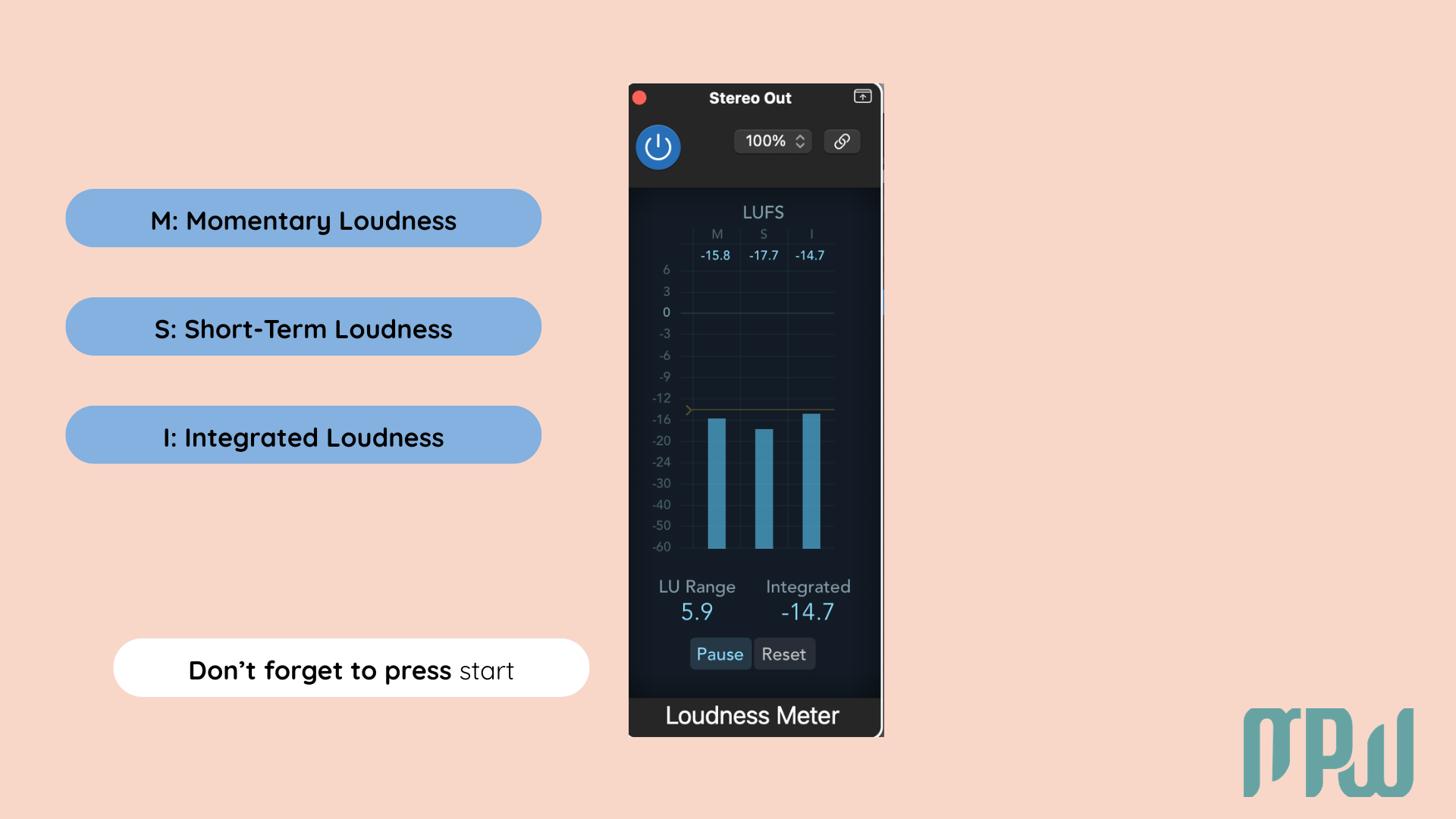
In Logic Pro X, the Loudness Meter usually shows three main readings:
Momentary Loudness
This shows how loud the track feels right now.
Short-Term Loudness
This shows how loud the track feels over the last few seconds.
Integrated Loudness
This shows the average loudness of the entire song from start to finish.
For music releases, Integrated LUFS is usually the number you care about most. It gives you the clearest picture of your song’s overall loudness.
So when someone says, “Aim for -14 LUFS,” they are usually talking about Integrated LUFS, not just the loudest three seconds of your chorus trying to become the main character.
What Is True Peak and Why Does It Matter?
A normal peak meter in your DAW shows you the sample peaks inside the digital file. But once your song is converted for streaming or playback, the signal can rise slightly above what your original meter showed.
That is where True Peak comes in.
If your master is already pushed right up to 0 dB, those small jumps can cause clipping or distortion when the file is encoded for streaming platforms.
That is why True Peak matters so much in a streaming-ready master.
A simple way to think about it is this:
LUFS tells you how loud the song feels
True Peak helps make sure the file stays safe in playback
For most releases, a very safe and beginner-friendly target is to set the True Peak ceiling to -1 dBTP.
It is not the flashiest setting in the world, but it quietly does a very important job, which is honestly the dream.
Why Streaming Loudness Matters
Streaming platforms do not play your track exactly as uploaded. Services like Spotify, Apple Music, and YouTube use loudness normalization, which means they adjust playback so songs sit in a more consistent loudness range. That is why LUFS matters so much. The goal is no longer to make your master as loud as possible, but to make it loud enough, clean, musical, and safe for streaming.
Spotify often uses around -14 LUFS as a loudness normalization reference, which is why many producers use that number as a practical starting point. You can also test how different platforms may affect your track's loudness using Loudness Penalty. So if you squash your song trying to make it louder than everything else, the platform may simply turn it down anyway, while any harshness, distortion, or flattened dynamics you introduced will still be there. A better goal is to create a master that still feels balanced, musical, and alive after normalization.
How to Measure LUFS in Logic Pro X
Logic Pro X’s stock plugins already give you everything you need to check your loudness properly. To measure LUFS in Logic Pro X, go to your Stereo Output channel and insert Audio FX → Metering → Loudness Meter. This is the main tool you’ll use to track loudness while preparing a streaming-ready master. Apple’s Loudness Meter guide for Logic Pro is also helpful if you want to understand what each reading means.
Once the meter is in place, play the song from the very beginning to the very end and watch the Integrated reading. If you make a major limiter or loudness change, hit Reset and run the track again.
This part really matters. If you only check the chorus, you are not measuring the full song. Integrated LUFS only becomes useful once the meter has seen the entire track from start to finish.
Yes, it takes patience. Yes, it is a little annoying. And yes, it is still the right way to do it.
What LUFS Should You Aim For?
Here is the beginner-friendly answer:
For most streaming-focused releases, a safe and sensible target is around -14 to -16 LUFS Integrated.
That range tends to work well because it:
fits comfortably into modern streaming workflows
usually gives you enough loudness without crushing the track
helps you avoid over-limiting for no real benefit
But this is where MPW energy comes in: do not let the number bully the music.
A sparse, emotional acoustic song may feel beautiful around -16 LUFS. A denser pop, dance, or electronic production may naturally land a bit louder.
So yes, the target matters. But so does the feel.
Ask yourself:
does the song still feel open?
does it still feel musical?
does it still sound like the version you actually wanted to release?
That matters just as much as the number on the meter.
What True Peak Setting Should You Use?
For most streaming releases, a very safe setting is to set your True Peak ceiling to -1 dBTP.
This gives your master a little breathing room and helps reduce the chance of clipping or distortion once the file is encoded for streaming platforms.
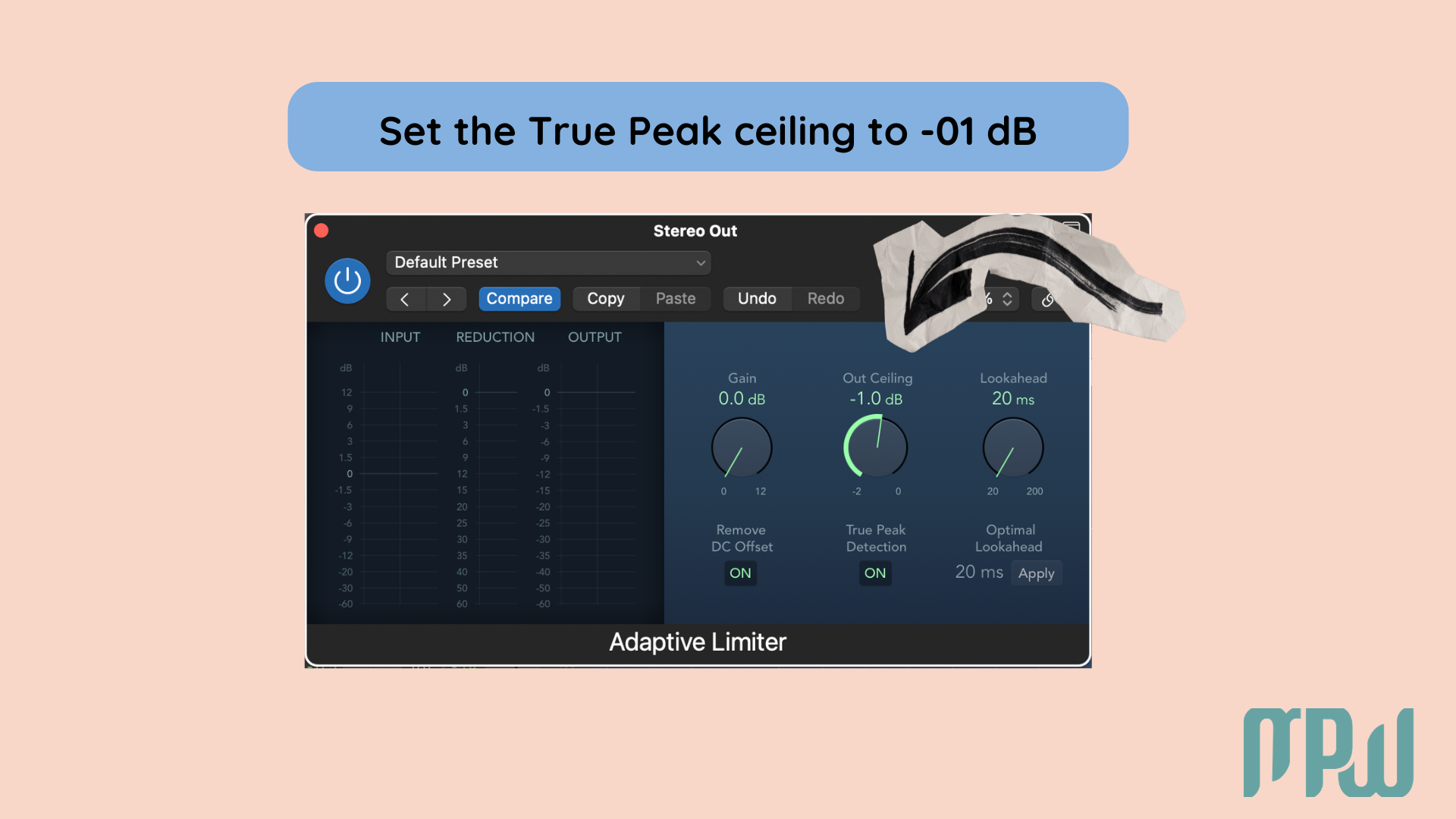
If you are using Adaptive Limiter in Logic Pro X, this is a great place to set it. Insert Adaptive Limiter on your Stereo Output, turn True Peak Detection on, and set the Out Ceiling to -1.0 dB.
That small bit of headroom can make your master much more reliable once it leaves your session.
A proper True Peak setting is one of those small technical choices that helps your song stay clean, controlled, and streaming-friendly.
Export Settings for a Streaming-Ready Master
Once the master sounds good, there’s one last tiny step we need to take care of: the export settings.
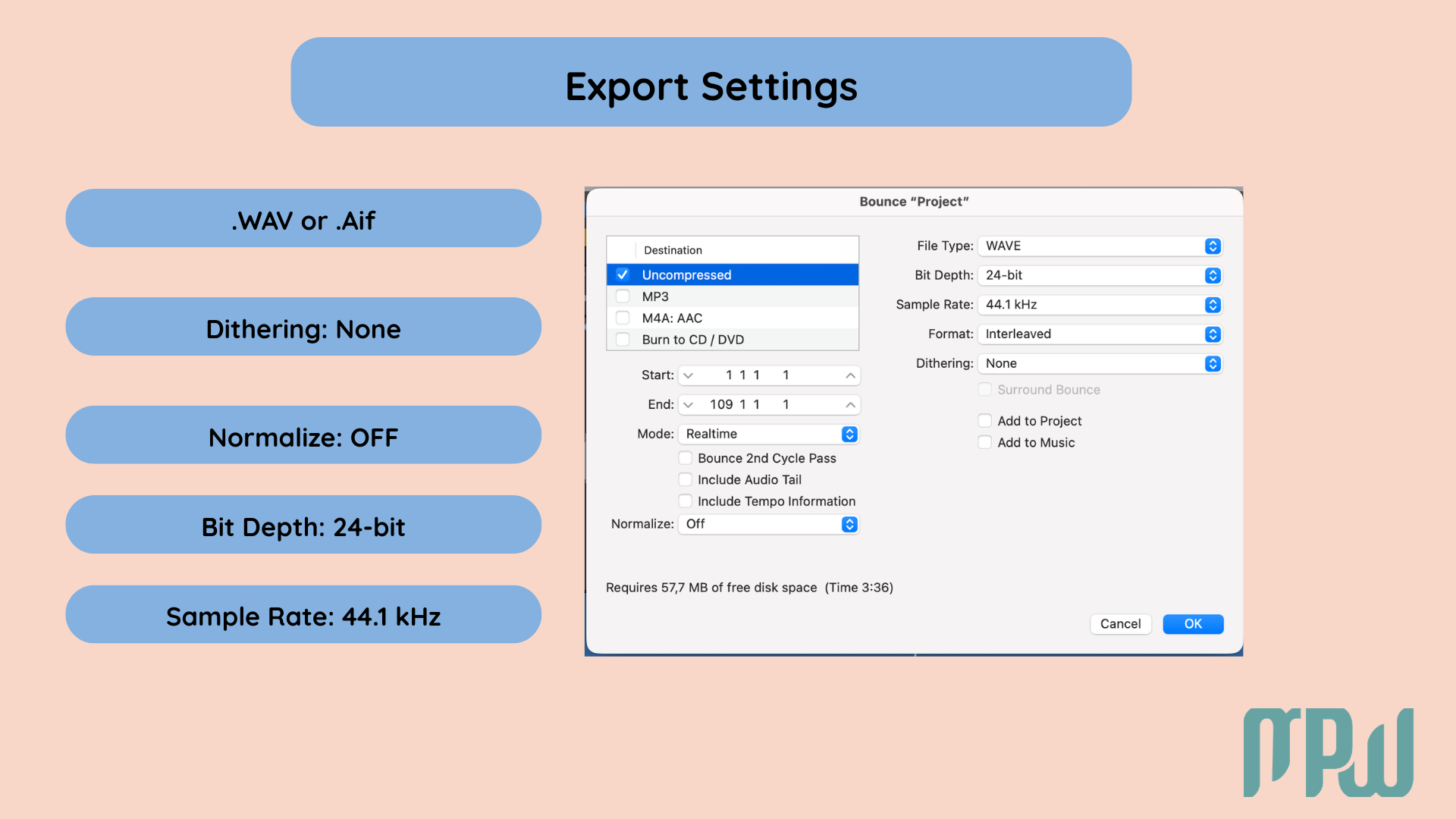
Format
Use WAV or AIFF. These are high-quality, uncompressed formats and they are ideal for your final master file.
Bit Depth
Use 24-bit. This is a strong default for modern digital release workflows.
Sample Rate
Use:
44.1 kHz for standard music releases
48 kHz if the song is also being used for video
Normalize
Set Normalize to OFF. This one matters a lot. By the time you are exporting a finished master, you have already made your loudness decisions using your limiter and mastering chain. Leaving Normalize on is like letting an uninvited assistant walk in at the last second and move the furniture after you already cleaned the room.
So yes: Normalize OFF.
Dithering
Use dithering only if you are creating a 16-bit version. If you are exporting your main master as 24-bit, you do not need it.
Common Loudness and Export Mistakes to Avoid
A few classics worth avoiding:
1. Chasing loudness at all costs
If the song sounds harsher, flatter, smaller, or more tiring after pushing the limiter, the extra loudness probably was not worth it.
2. Ignoring Integrated LUFS
Checking only the peak level does not tell you enough. Integrated LUFS gives you a much better sense of how loud the song actually feels overall.
3. Setting the ceiling too high
Pushing your output right up to 0 dB may look bold, but it often creates problems once the file is streamed or encoded.
4. Exporting only an MP3
Always keep a proper, high-quality master file first, ideally as WAV or AIFF. Let the streaming platforms handle compression on their end.
5. Leaving Normalize on by accident
This tiny setting can quietly undo your careful loudness decisions. Double-check it before exporting.
6. Trusting the meter more than the music
A track can hit the “right” LUFS number and still sound worse. The meter matters, but the song still comes first.
That one is worth repeating forever.
Final Checklist Before You Upload Your Song
Before you send the track to your distributor, run through this quick checklist:
I checked the Integrated LUFS in Logic’s Loudness Meter
My master sits in a sensible streaming-friendly range
My True Peak ceiling is set to -1 dBTP
The master still feels musical, not crushed
I exported a 24-bit WAV or AIFF
Normalise is turned OFF
I saved a clean master file for archive and delivery
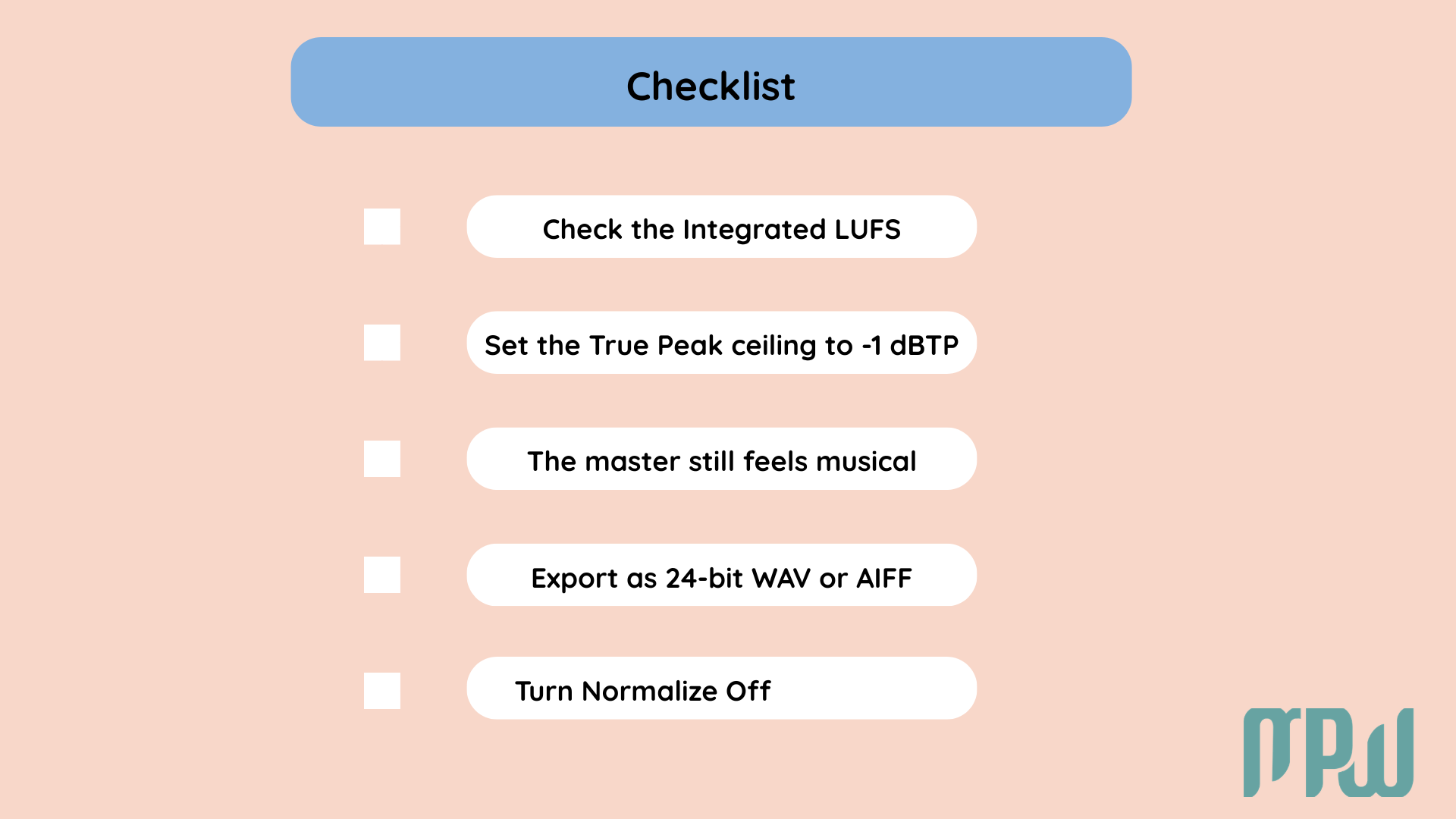
Checklist for a streaming-ready master covering integrated LUFS, true peak ceiling, export format, and normalize settings
If those are all true, you are in a very solid place.
Final Thoughts
LUFS, True Peak, and export settings in Logic Pro X are the final monster at the end of the game. Mostly because they show up when your ears are tired, and all you want is a snack, a nap, and emotional closure.
But the actual goal is very simple: create a master that sounds good and holds up on streaming platforms. You do not need to become a loudness philosopher overnight.
You just need to understand what the numbers are telling you, use Logic’s tools properly, and avoid pushing the track harder than it wants to go.
A clean, musical, well-exported master will always take you further than chasing the loudest file in the room.
You’ve got this.
Want to Start Producing But Not Sure Where to Start?

FAQ
What are LUFS in Logic Pro X?
LUFS are a measurement of perceived loudness. In Logic Pro X, the Loudness Meter helps you see how loud your track actually feels over time, which is much more useful than only checking peak level.
How do I measure LUFS in Logic Pro X?
Insert Loudness Meter on your Stereo Output, play the full song from start to finish, and check the Integrated reading.
What LUFS should I aim for for streaming?
A practical beginner-friendly target is around -14 to -16 LUFS Integrated. That range usually works well for streaming while still leaving enough room for the song to breathe.
What is True Peak in Logic Pro X mastering?
True Peak is a safety measure that helps prevent distortion when your file is converted for streaming or playback. A strong default target is -1 dBTP.
What True Peak setting should I use in Logic Pro X?
For most streaming releases, set your True Peak ceiling to -1 dBTP.
Should I normalize when exporting from Logic Pro X?
No. For a finished master, it is usually best to leave Normalize OFF so Logic does not change your loudness at the last second.
What are the best export settings in Logic Pro X for streaming?
A strong default is WAV or AIFF, 24-bit, 44.1 kHz for music, with Normalize OFF.
Is -14 LUFS required for Spotify?
No, - 14 LUFS is a reference point because many streaming platforms use loudness normalization, but your master should still be guided by the track's genre, arrangement, and musical feel.
What file format should I export for a streaming-ready master?
Use WAV or AIFF as your main master file. These formats preserve quality and are ideal for delivery and archiving.