Logic Pro Buses Explained for Beginners: Sends, Aux Tracks and Reverb Buses
Table of Contents
Bus vs Send vs Aux in Logic Pro
When Should You Use a Bus Instead of an Insert?
How to Create a Reverb Bus in Logic Pro
How to Create a Delay Bus in Logic Pro
How to Use Buses for Group Processing
How to Show Buses in Logic Pro
Key Takeaways
A bus in Logic Pro is a routing path that sends audio from one place to another.
Buses are useful for shared effects like reverb and delay.
A send controls how much signal is routed from a track.
A bus is the route that signal travels through.
An Aux channel receives and processes that signal.
Logic Pro can make buses and Aux channels feel like the same thing because it often creates an Aux channel automatically when you choose a bus.
Group buses let you process related tracks together.
Using buses makes your session cleaner, more cohesive, and easier to mix.
When I first started producing music, I used to visually avoid the whole Aux / Bus / Sends section in the Logic Pro mixer.
I would open the mixer, see Bus 1, Aux, and Sends, and immediately think: “Nope. Not today.”
It looked like one of those areas you should only touch if you have an audio engineering degree and a very serious studio chair.
But the truth is much simpler: the mixer is just being dramatic.
A bus is simply a way to send audio to another location.
That’s it. Just routing.
In this guide, you’ll learn how Logic Pro buses work, how sends and Aux channels fit together, and how to use buses for shared reverbs, clean delays, and grouped instruments without the tech overwhelm.
Think of the bus like the Yellow Brick Road. It is not the magic itself. It is just the path that helps your audio get where it needs to go.
If you are still getting comfortable with what a DAW actually does, start with our beginner-friendly guide to Digital Audio Workstations.
What Is a Bus in Logic Pro?
A bus in Logic Pro is a routing path. It sends audio from one place to another.
A bus is not an effect. It does not add reverb, delay, compression, sparkle, or emotional healing on its own.
Most beginners use buses to send audio to an Aux channel with an effect on it. For example, you might send a vocal to a reverb bus or delay bus.
You can also use buses to route multiple tracks to a single shared group channel, such as a Drum Bus, Backing Vocal Bus, or Guitar Bus.
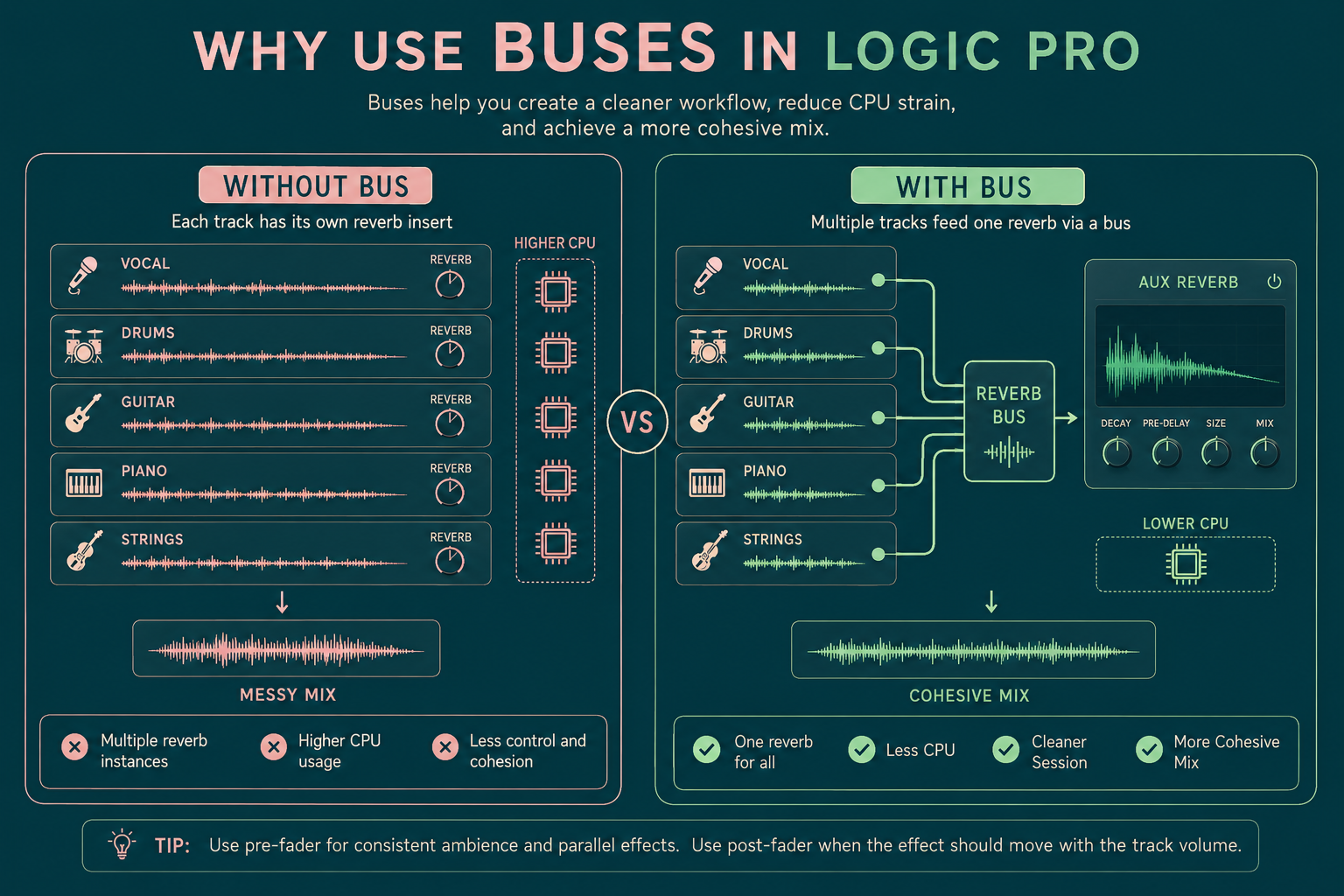
Instead of putting a separate reverb plugin on every vocal track, you can send all your vocals to one shared reverb bus. This keeps your session tidy, saves CPU, and helps your mix feel more connected.
Very organized. Very Emerald City energy.
Why Use Buses in Logic Pro?
You can put a plugin directly on a track. That is called an insert, and it works well when you want to process a single sound.
But buses are useful when you want to share effects, control groups, save CPU, and keep your Logic Pro session easier to manage.
Buses Save CPU
Instead of using ten separate reverbs on ten vocal tracks, you can use one reverb on one Aux channel and send all ten vocals to it.
Your laptop will be grateful.
Buses Make Your Mix More Cohesive
When multiple tracks share the same reverb or delay, they can feel like they exist in the same space.
This helps glue the mix together, rather than making every track feel like it lives in a different emotional postcode.
Buses Keep Your Session Cleaner
One shared reverb is much easier to manage than five different reverb plugins scattered across your session.
Your future self will thank you.
Buses Help with Group Processing
You can route drums, guitars, synths, or backing vocals to one shared bus. Then you can control the entire group with a single fader.
Very tidy. Very, “I know what I’m doing.”
Bus vs Send vs Aux in Logic Pro
A send, a bus, and an Aux channel are connected, but they are not the same thing.
This is where Logic Pro can feel confusing, because when you choose a bus from a send slot, Logic often creates an Aux channel automatically.
So visually, it can feel like:
Bus 1 = Aux 1
But technically, they are doing different jobs in the same routing chain.
Here is the simplest way to think about it:
Original Track
→ main output → Stereo Out
Original Track
→ send amount → Bus 1 → Aux Channel with Reverb → Stereo Out
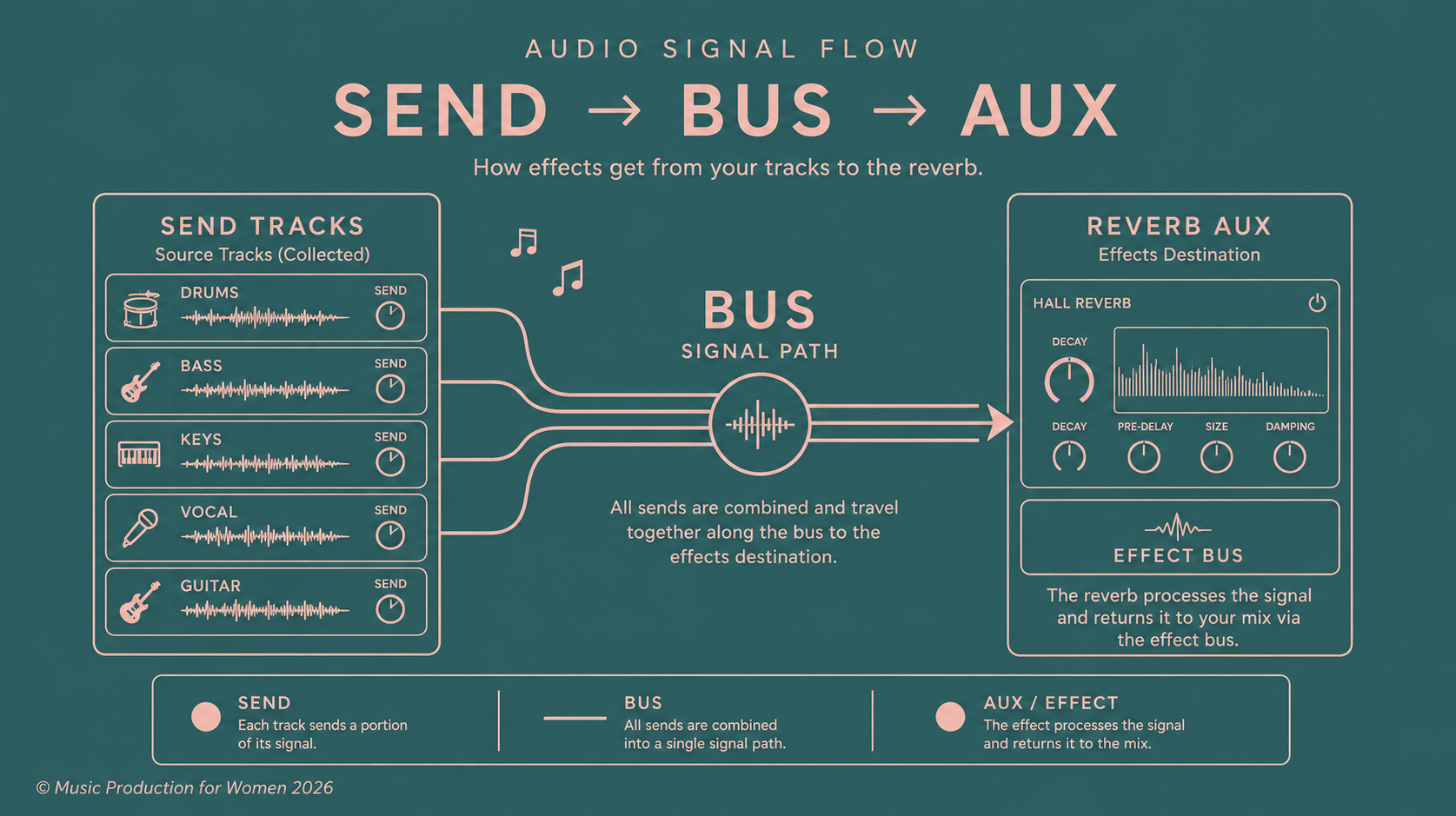
The original track still plays normally. The send creates a copy of the signal, the bus carries that copy, and the Aux channel receives it.
What Is a Send?
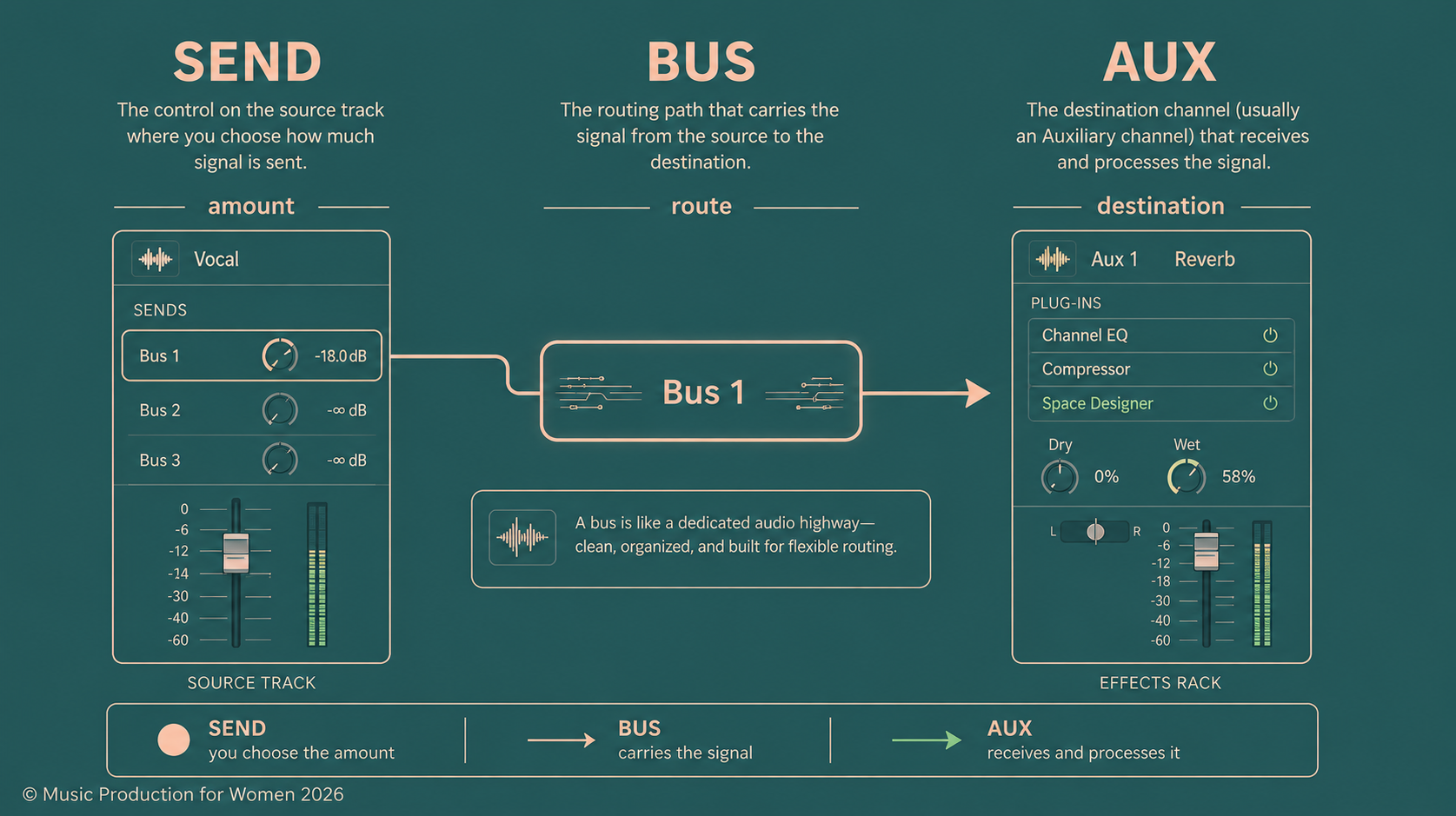
A send controls how much signal is routed from the original track.
It lives on the original channel strip.
For example, if you have a lead vocal track, the send is the little control that says something like Bus 1.
If you turn the send up a little, a little bit of the vocal goes to the bus.
If you turn it up more, more vocal goes to the bus.
So the send is not the destination. It is not the effect. It is the amount of signal you are sending away from the track.
In simple terms:
Send = how much signal leaves the track
What Is a Bus?
The bus is the route the signal travels through.
It does not process the sound on its own. It simply carries the audio to another destination.
In Logic Pro, the bus itself is not usually the thing you “see” as a normal track. It is more like an invisible internal path.
So when you select Bus 1, you are choosing the road your audio will travel down.
In simple terms:
Bus = the route
Or, in Oz terms:
The bus is the Yellow Brick Road.
What Is an Aux?
The Aux channel is the visible channel strip that receives the signal from the bus.
This is where the audio arrives, and it is usually where you place the effect plugin, such as reverb or delay.
So if your vocal send goes to Bus 1, Logic Pro may create an Aux channel with:
Input: Bus 1
Output: Stereo Out
That Aux channel is where you might insert ChromaVerb, Space Designer, a delay plugin, EQ, compression, or anything else you want to use on the returned signal.
In simple terms:
Aux = the destination that receives and processes the signal
Why Do Bus and Aux Feel Like the Same Thing in Logic Pro?
Because Logic Pro tries to help you.
When you choose a new bus from a send slot, Logic Pro often creates a new Aux channel automatically.
That means these two things appear almost at the same time:
You choose: Send → Bus 1
Logic creates: Aux channel with Input set to Bus 1
So it is very normal to think, “Wait, are Bus and Aux the same thing?”
They are not exactly the same.
They are best friends, but they are not twins.
The bus is the invisible routing path.
The Aux channel is the visible channel strip that receives the audio from that path.
Simple Summary
Send = amount
Bus = route
Aux = destination
Or, in Oz terms:
The send lets the audio leave, the bus is the Yellow Brick Road, and the Aux is where the magic happens.
When Should You Use a Bus Instead of an Insert?
Use an insert when you want to process one individual track directly.
Examples:
EQ on a lead vocal
Compression on a bass
Saturation on a synth
Use a bus when you want to share an effect or process a group of tracks together.
Examples:
One shared reverb for all vocals
One delay shared across instruments
One drum bus for all drum tracks
One backing vocal bus for harmonies
Beginner rule:
Insert for one sound. Bus for shared effects or groups.
How to Use Buses in Logic Pro
The easiest way to start using buses in Logic Pro is with a shared effect bus, like a reverb bus.
Here is the basic process:
Choose a track, such as your lead vocal.
Click an empty Send slot on the channel strip.
Select an unused bus, such as Bus 1.
Logic Pro will usually automatically create a new Aux channel.
Add a reverb plugin to that Aux channel.
Adjust the send level on your original track.
At this point, your original track is still going to the Stereo Out as normal. The send just creates an extra copy of the signal and sends it to the Aux channel via the bus.
That is why this setup is so useful for reverb and delay: you keep your original sound, then blend in as much effect as you want.
Start simple:
One reverb bus;
One delay bus;
One group bus.
That is enough to make your session cleaner without turning your mixer into a haunted castle.
Apple’s Logic Pro User Guide is also useful if you want to see how Logic describes sends, channel strips, and mixer routing.
A Simple Beginner Bus Setup
A good beginner setup could look like this:
Bus 1 = Vocal Reverb
Bus 2 = Vocal Delay
Bus 3 = Drum Bus
Then you can rename the Aux channels clearly:
Vocal Reverb
Vocal Delay
Drum Bus
This makes your session much easier to understand when you come back to it later.
Because “Aux 1, Aux 2, Aux 3” tells you absolutely nothing. Very mysterious. Not very helpful.
If you want to go deeper into group processing, read our beginner guide to compression in music.
Pre-Fader vs Post-Fader Sends
In Logic Pro, sends can usually be post-fader or pre-fader.
What Is a Post-Fader Send?
A post-fader send follows the volume of the original track.
If you turn your vocal down, the amount going to the reverb also goes down.
This is the best place to start for most beginner reverb and delay sends.
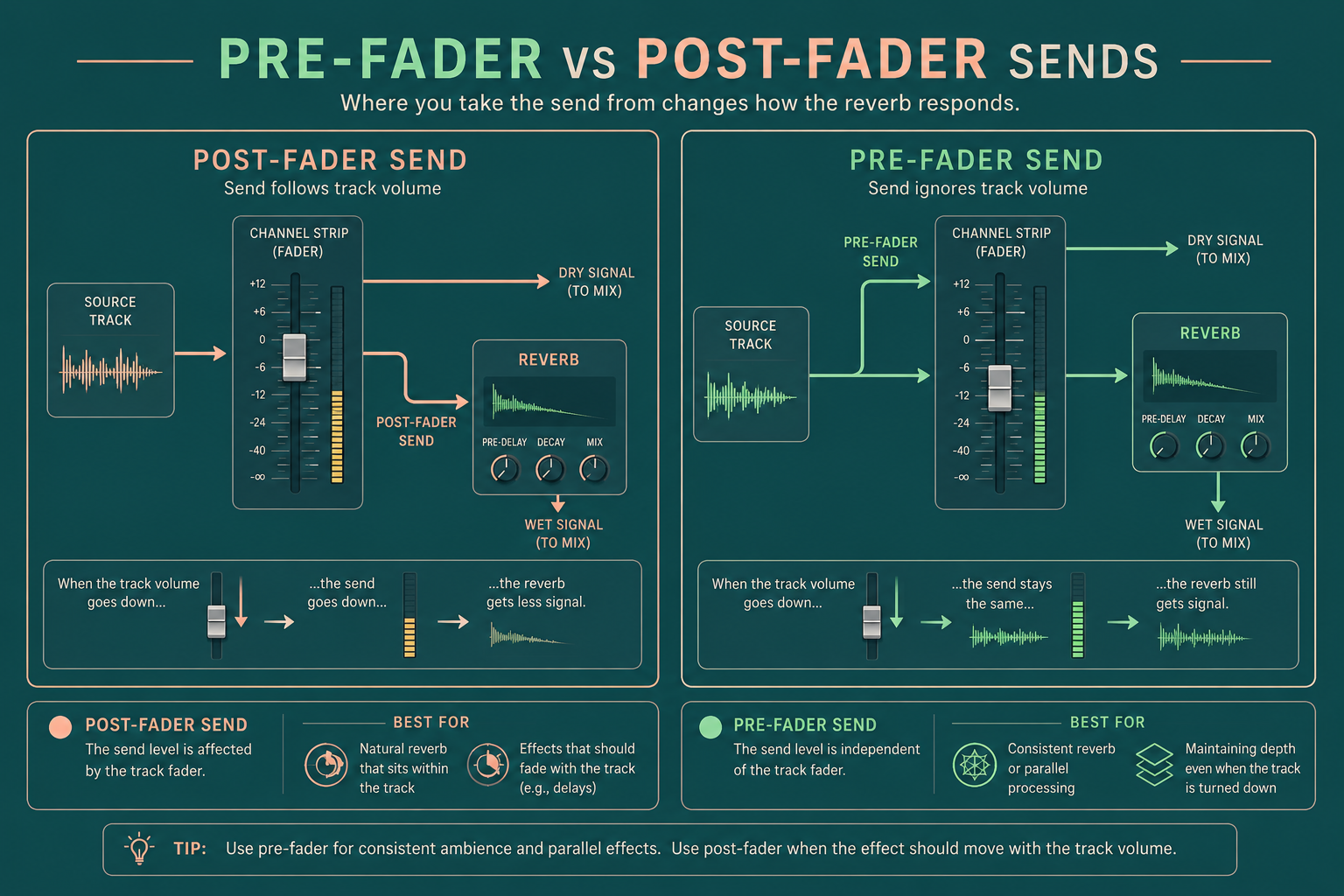
What Is a Pre-Fader Send?
A pre-fader send sends audio before the track fader.
This means the signal can still go to the bus even if the original track is turned down.
This can be useful for headphone mixes, special effects, or more advanced routing.
Which One Should Beginners Use?
For most beginner mixing situations, keep your sends post-fader.
It is simple, predictable, and keeps your reverb or delay behaving in a way that usually makes sense while you are mixing.
How to Create a Reverb Bus in Logic Pro
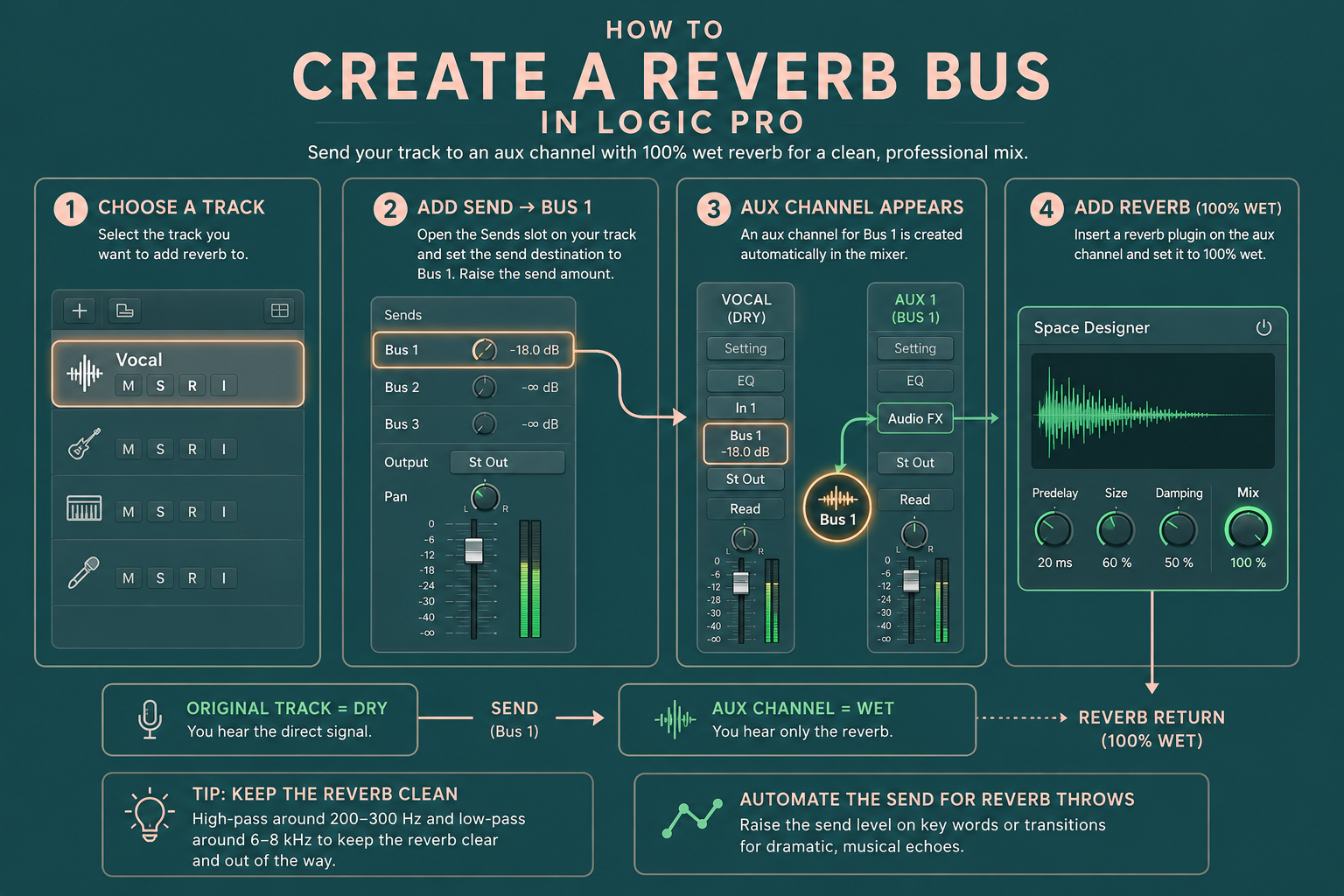
A reverb bus lets multiple tracks share one reverb, which can make your mix feel more cohesive.
Open the Mixer by pressing X.
Find the track you want to add reverb to.
Click an empty Send slot and choose a new bus.
Locate the new Aux channel created in Logic Pro.
Insert a reverb plugin on that Aux channel, such as ChromaVerb or Space Designer.
Set the reverb plugin to 100% wet.
Turn up the send dial until the reverb feels right.
Why 100% Wet?
Your original track is already playing the dry sound. The Aux channel exists only to provide the wet reverb signal.
Simple rule:
Original track = dry
Aux channel = wet
If the reverb on the Aux channel is not fully wet, you may accidentally add extra dry signal back into the mix. That can make the balance confusing very quickly.
Emotionally stable mixing begins with knowing where your dry and wet signals are.
How to Create a Delay Bus in Logic Pro
A delay bus works like a reverb bus, but with a delay plugin.
Click an empty Send slot on your vocal.
Select a new unused bus.
Find the newly created Aux channel.
Add a delay plugin to that Aux channel.
Set the delay to 100% wet.
Turn up the send amount until the delay feels right.
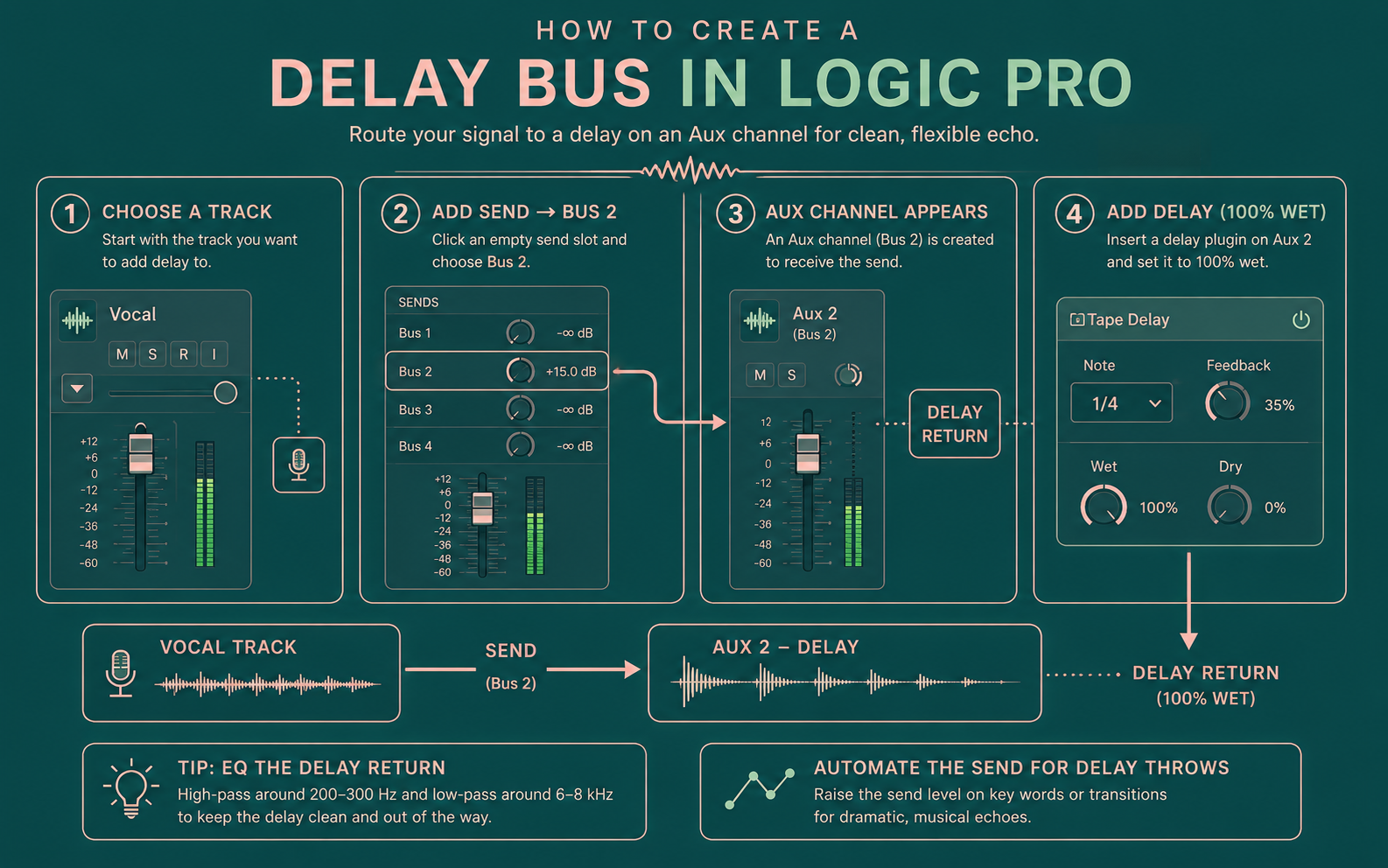
Because the delay is on its own Aux channel, you can process it separately.
For example, add EQ after the delay plugin to roll off muddy lows or soften harsh highs.
You can also automate the send so the delay only appears on the last word of a phrase.
Very emotional. Very useful.
How to Use Buses for Group Processing
Buses are not just for effects. They are also useful for grouping similar tracks together.
This is where the difference between sends and outputs matters.
For reverb and delay, you usually use a send, because you want to send a copy of the sound to an effect.
For group processing, you usually change the output of your tracks to a bus, because you want the whole signal to pass through one shared Aux channel.
Example: if you have eight backing vocal tracks, change the output of all eight tracks to Bus 5. Logic Pro creates an Aux channel. Now one Aux fader controls all eight backing vocals.
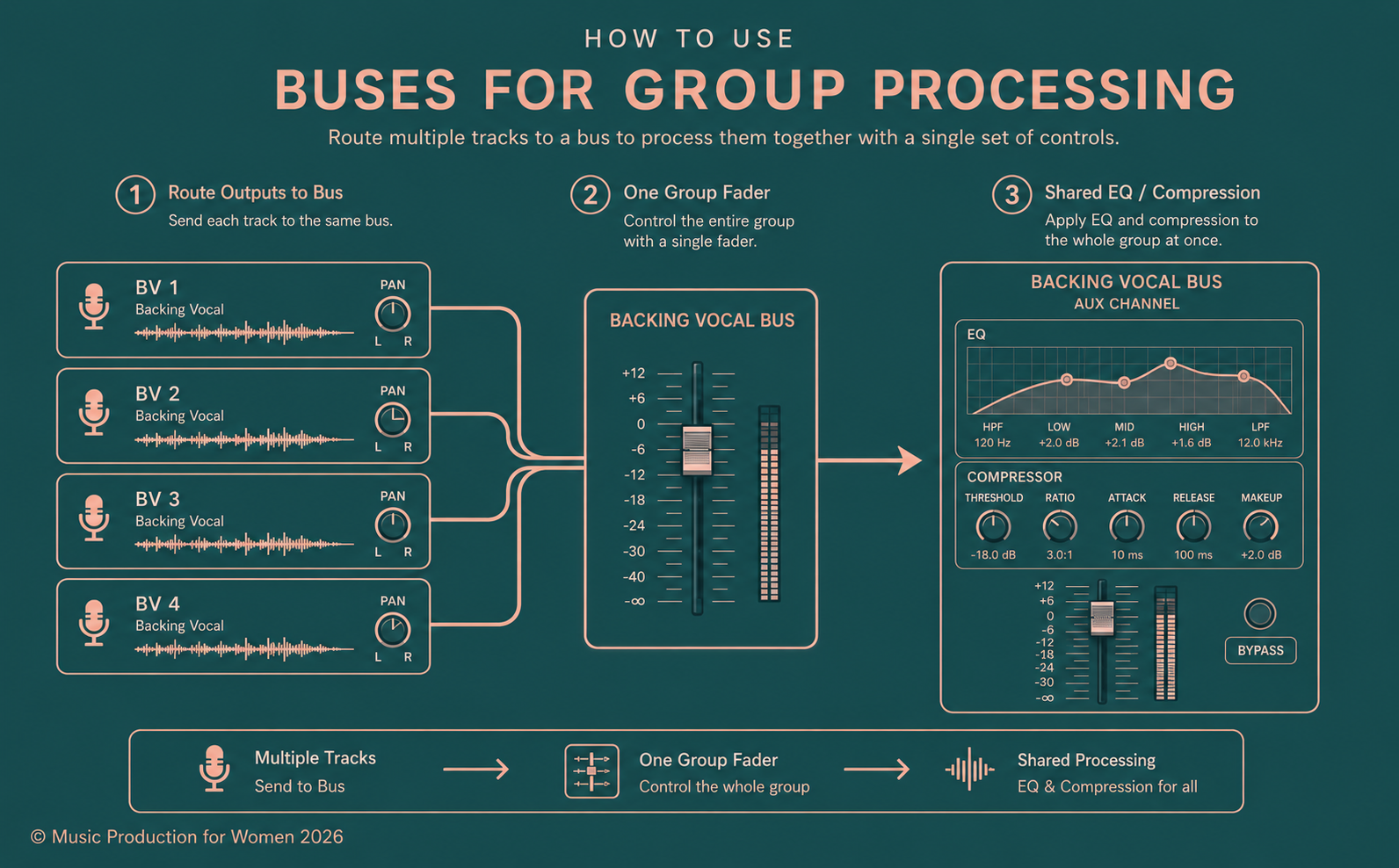
Common group buses include:
Drum Bus
Backing Vocal Bus
Guitar Bus
Synth Bus
You can also add gentle compression or EQ to the group bus to help everything feel more controlled.
Your backing vocals have officially found their coven.
How to Show Buses in Logic Pro
The bus itself is not usually a physical track you see. It is the routing path.
What you see is the Aux channel that receives the audio.
To find it:
Press X to open the Mixer.
Look for the Aux channel strips Logic Pro created.
Check your send slots or output routing to see which bus is being used.
Rename the Aux channels immediately.
Good names include:
Vocal Reverb
Vocal Delay
Drum Bus
Backing Vocal Bus
Please do not leave them named Aux 1, Aux 2, and Aux 3 forever.
That path leads to dark and confusing places. And not in a cool Wicked way.
Common Beginner Mistakes with Logic Pro Buses
1. Putting Reverb Directly on Every Track
Doing this can eat CPU and make your mix sound disconnected. A shared reverb bus is often cleaner.
2. Using Too Much Send Level
Just because you have a lush reverb does not mean we need to drown in it.
Effects are often best felt, not heard.
3. Forgetting 100% Wet
For shared reverb and delay buses, the plugin on the Aux channel should usually be set to 100% wet.
4. Confusing Sends with Outputs
A send makes a copy of the audio and sends it somewhere else. This is great for reverb and delay.
An output moves the entire audio signal. This is great for grouping drums, vocals, guitars, or synths.
5. Thinking Bus and Aux Are Exactly the Same
This is a very normal beginner confusion in Logic Pro.
Because Logic often creates an Aux channel automatically when you select a bus, it can feel like the bus and the Aux are the same thing.
But remember:
Bus = route
Aux = receiving channel
The bus carries the audio. The Aux channel receives it.
6. Overcomplicating the Routing
You do not need 19 Aux channels to sound professional.
Start with one reverb bus, one delay bus, and one group bus.
Final Thoughts
Logic Pro buses might look intimidating at first, but they are just routing paths that help you send audio where it needs to go.
That could mean sending your vocals to a shared reverb, adding a delay throw, or grouping 15 drum tracks into one manageable fader.
Start small. Set up one reverb bus today and try it on a vocal, synth, or guitar.
Once the concept clicks, mixing stops feeling like a battle against the software and starts feeling like actual music-making again.
You had the power all along. The bus was just the road.
We love that for you.
Want to Start Producing But Not Sure Where to Start?

If you want to learn music production step by step without the tech overwhelm, join our free Intro to Music Production Masterclass and start building confidence inside your DAW.
FAQ
How do you use buses in Logic Pro?
Click an empty send slot on a track, choose an available bus, let Logic Pro create the Aux channel, add your effect to that Aux channel, and adjust the send amount.
What does a bus mean in Logic Pro?
A bus is a routing path that sends audio from one place to another. It is used for shared effects like reverb and delay, or for grouping tracks together.
Does Logic Pro have buses?
Yes. Logic Pro buses are part of the software’s routing system and are used for sends, Aux channels, shared effects, and subgroups.
How do you show buses in Logic Pro?
Press X to open the Mixer and look for the Aux channels. The bus itself is the routing path, while the Aux channel is the visible destination.
What is the difference between a bus and an aux in Logic Pro?
The bus is the route the audio travels through. The Aux channel is the destination that receives and processes that audio. In Logic Pro they can feel similar because Logic often creates an Aux channel automatically when you select a bus.
What is the difference between a send and a bus in Logic Pro?
A send controls how much signal leaves your track. The bus is the routing path that carries that signal to another destination.
(H3) Should I use buses for reverb in Logic Pro?
Yes. A reverb bus saves processing power and helps multiple tracks feel like they belong in the same space.
How do you create a reverb bus in Logic Pro?
Click an empty send slot, assign an unused bus, let Logic Pro create an Aux channel, add a reverb plugin, set it to 100% wet, and turn up the send dial.
Can you use buses for group processing in Logic Pro?
Yes. You can route the outputs of similar tracks, such as drums or backing vocals, to a single bus so you can control and process them together.
What is the difference between a send and an output in Logic Pro?
A send routes a copy of the signal somewhere else, which is useful for effects like reverb and delay. An output changes where the main signal goes, which is useful for grouping tracks.