How to Record Audio in Ableton Live 12 (Step-by-Step Beginner Guide)
Table of Contents
Key Takeaways
The Foundation Matters: If your Audio Preferences aren't set to your specific interface (ASIO/CoreAudio), nothing else will work.
Look for the Red Button: You must arm your track (turn the little red circle) before Ableton will hear a single note.
Gain Staging is Key: Aim for peaks between -12 dB and -6 dB on the meter. If you hit red, turn down your interface, not the Ableton fader.
Latency vs. Buffer: Use a low buffer size (e.g. 128 samples) for recording to avoid delay. Use a high buffer size for mixing.
One Monitor Only: If you hear an echo, choose between monitoring in Ableton (Auto) OR through your interface (Direct Monitor), never both.
Right, so you’ve bought all the gear, you’re ready to record that song, and then...nothing, you can’t hear anything! The silence is overwhelming, and you’re left wondering, What am I doing wrong?
Recording vocals can seem intimidating. There are endless buttons and connections. But everyone’s been there. Recording in Ableton Live 12 is simpler than it looks. You just need to know which three buttons matter.
In this post, we’ll walk through the basics so you can track vocals from your home studio without stress.
By the end, you’ll have a clean, properly set-up vocal track so you can focus on performing, not the manual.
The Gear You Actually Need
Before we dive into the software, let’s make sure your hardware is ready to go. You don’t need a million-dollar studio, just the essentials:
Microphone: Ideally, use a condenser microphone for crisp studio sound. However, don't let gear stop you; a dynamic mic or even your iPhone (synced to the DAW) works fine to get started.
Audio Interface: The bridge between the analog and digital worlds. It’s the box where you plug in your mic so your computer can hear it.
Headphones: These are non-negotiable! You need them for monitoring, so your microphone doesn’t record the music coming out of your speakers.
Still setting up your space? Check out our full guide on How to Set Up Your Home Studio.
Audio Settings
This is where issues begin; this section forms the foundation of your vocal setup in Ableton. If Ableton doesn’t detect your interface here, nothing else will work.
First, open Preferences: Go to Live, then Settings, then select Audio. (Cmd + , for Mac / Ctrl + , for Windows)
For Mac users: Set Driver Type to CoreAudio.
For Windows users: Set Driver Type to ASIO. (This is essential for low latency; download your interface’s driver if needed.)
Next, choose Input and Output Devices, and set both to your audio interface (e.g., Focusrite, Apollo, or Volt). If unable to see the signal later, open Input Config and enable your audio interface’s input (e.g., Input 1/2).
Set the Sample Rate to either 44.1kHz or 48kHz. Choose one and stick to it for consistency.
Buffer Size controls latency (delay) during playback and recording. Adjust based on your needs: lower for recording, higher for mixing.
A lower buffer size (128 samples or fewer) lets you hear your voice instantly. Use this for recording.
A higher buffer size (512 or 1024 samples) gives your computer more processing time, reducing issues with many plugins but causing latency (a delay between what you’re recording and what you hear back on your headphones) when recording.
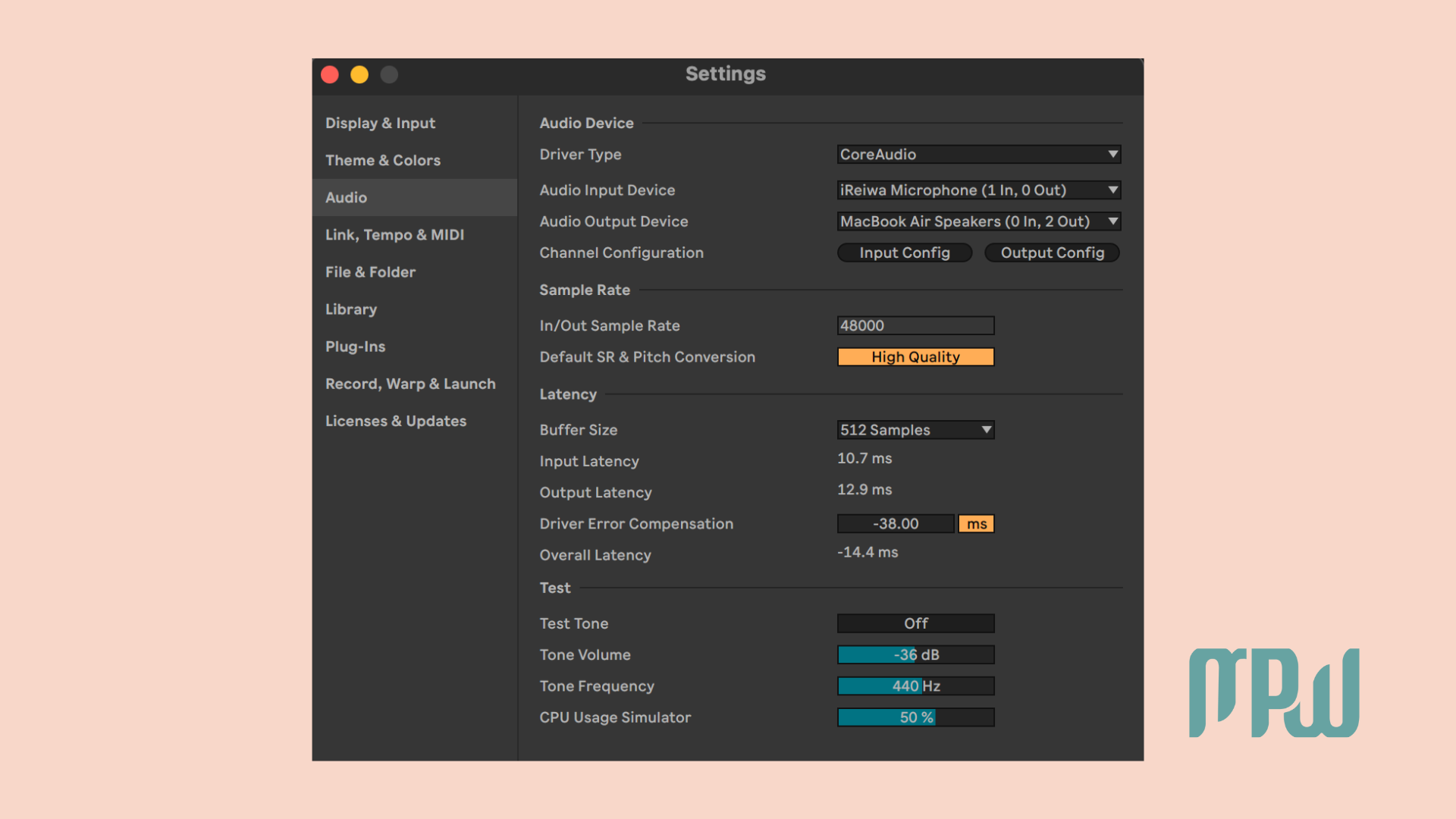
MPW Tip: Start vocal tracking at 128 samples. If you hear crackles or glitches, gradually increase the buffer to 256 or 512. This just means your CPU is working hard, don’t worry, just adjust the buffer.
Create Your Vocal Track
Now let’s get a track ready to capture your voice. When you first open Ableton, you see a grid of empty rectangles. That is Session View. It’s great for loops, but for recording a full song, we want the timeline.
Hit Tab on your keyboard to flip over to Arrangement View (the one with horizontal lines). It makes tracking vocals so much easier. Thank me later.
For our vocals, we need a fresh lane for your audio. Go to Create > Insert Audio Track or just use the shortcut:
Mac: Cmd + T
Windows: Ctrl + T
Now, route the input. Now, you need to tell Ableton: Hey, my mic is in channel one, grab it!
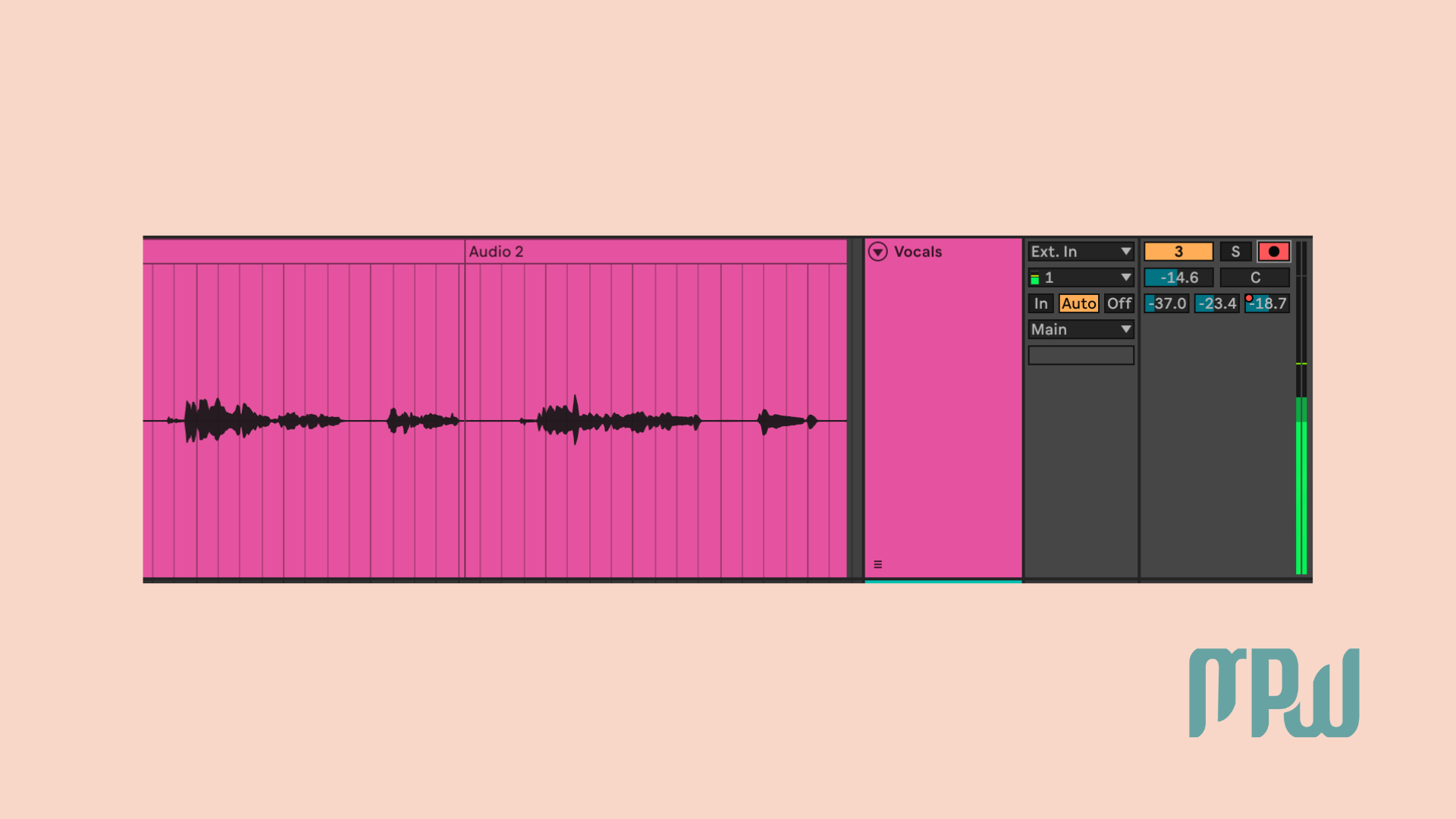
Look for the Audio From section on the track.
Can't see it? Click the I-O button on the right side of the screen to reveal your routing options.
Select Ext. In and choose the input your mic is plugged into (usually Input 1 or Input 2).
Last step, Mic Check. Now, say something to your microphone. Recite your grocery list, tell it your life story, whatever.
Watch the little meter on the track on the right side. If you see a green/gray bar bouncing up and down, bang, that’s your voice. We have a signal.
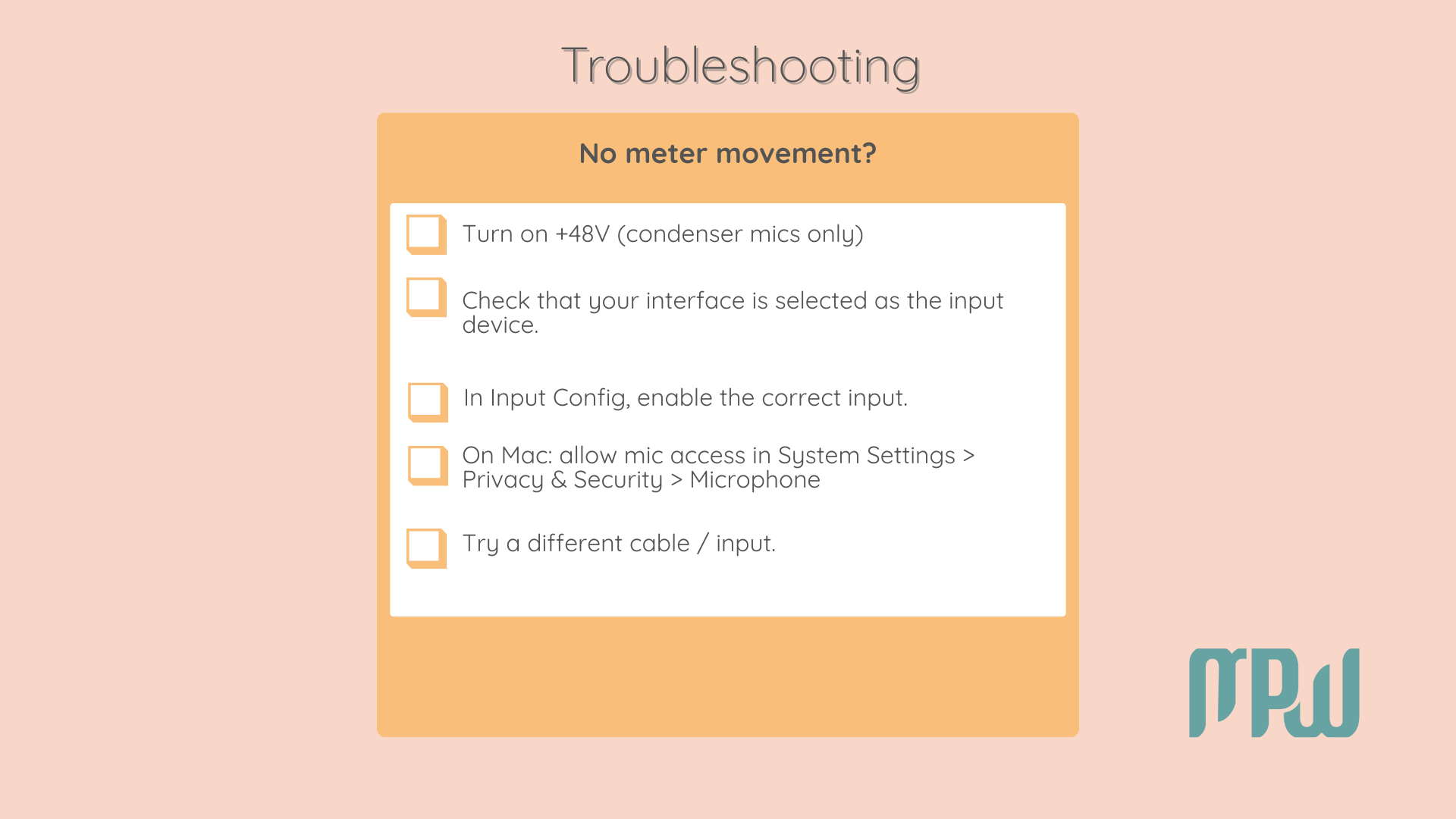
Silence? If you are talking to your mic but the meter is dead flat, you probably forgot to turn on the Phantom Power (+48V) button on your audio interface. This is mandatory if you are using a condenser mic!
Monitoring
This is where the Why can’t I hear anything? panic usually sets in. Relax, it’s usually just one button.
First, arm the track. Click the Record Arm button (the little circle at the bottom of the track). It will turn RED. If it’s not red, Ableton is ignoring you.
Then, Set Monitoring: now, decide when you want to hear your voice:
Auto: The beginner’s best friend. You hear yourself while you are recording, and then you hear the playback when you hit play. Easy.
In: You hear your mic constantly, even when the track is not armed. This means that if you leave this on In, you won't hear what you just recorded when you play it back; you'll still hear only your live microphone. Stick to my recommendation: go with Auto unless you know what you're doing.

If you start singing and hear a weird slap-back delay, like you’re in a bad sci-fi movie, you are monitoring twice. You are hearing the signal from your interface (Direct Monitor) and the software signal from Ableton simultaneously. To fix this, pick a lane! Either turn off Direct Monitor on your interface knob, OR turn Ableton monitoring to Off. Just don't use both, or you’ll drive yourself crazy.
Set a Safe Recording Level
This is where excellent recordings are won or lost. Many people think they need to record as loudly as possible; don’t do this!
Sing the Loudest Part: Belt out the chorus of your song.
Watch the Meter: You want the green bar to peak around -12 dB to -6 dB.
Adjust the Interface: If it’s hitting red, turn down the Gain Knob on your physical audio interface. Do not touch the fader in Ableton to fix this. The Interface Gain controls the recording level; the Ableton Fader is just for mixing volume later.
If your waveform looks tiny, turn up your interface gain until you hit that sweet spot (-12 to -6 dB).
Fix Latency
Does your voice feel slightly behind the beat? That is latency, and it is almost always caused by buffer size...the little monster that strains your CPU.
Go back to your Audio Preferences (Mac: Live > Settings > Audio / Windows: Options > Preferences > Audio).
Lower the Buffer Size to 128 samples (or less if your computer is powerful).
If lowering it causes crackling, stop. Use the Direct Monitor button on your audio interface to monitor yourself with zero delay.
Record Your Take
You made it. You are ready. It’s time to learn how to record vocals in Ableton Live 12 for real.
Before starting, click the dropdown arrow next to the Metronome icon and select 1 Bar Count-In. This provides four count-in clicks so you have time to prepare before recording starts.
Press the Arrangement Record button (the solid circle at the top bar) or just smash the Ableton record shortcut (F9).
Tadaaaa! Worked? You are now recording audio.
You might be tempted to add 10 plugins right now, but it’s better to get a raw, clean capture first. I prefer to add the heavy stuff after the recording is done! Otherwise, trust your voice and leave the mixing for later.
Bonus:
Here’s a pro tip (also in the YouTube video!). Since we often record alone in small home studios, staying relaxed is crucial. Avoid straining to reach your mouse between takes.
Head over to the KEY button in the top right corner of Ableton (look at the picture below).
Click it, then click the big, solid Record circle in the top bar.
Now, press a convenient key on your computer keyboard (like R or *).
Click KEY again to exit.
You’ve now created your own shortcut. Hit your chosen key to start recording stress-free. It’s easier to do than explain!
Want to Start Producing But Not Sure Where to Start?
Final Thoughts
You’ve navigated inputs, optimized latency, and captured clean audio. Silence now serves as a canvas for your voice.
Learning how to record vocals in Ableton Live 12 is like learning to drive; it feels overwhelming the first time, but soon you’ll be doing it without thinking. The goal isn't to be a technical genius; it's to get the tech out of the way so you can tell your story.
Want to take it to the next level? If you want a Part Two where we cover a simple, beginner pop vocal chain that actually works, drop a comment on our YouTube video with the text VOCAL CHAIN, and we’ll make it happen! Happy tracking!